
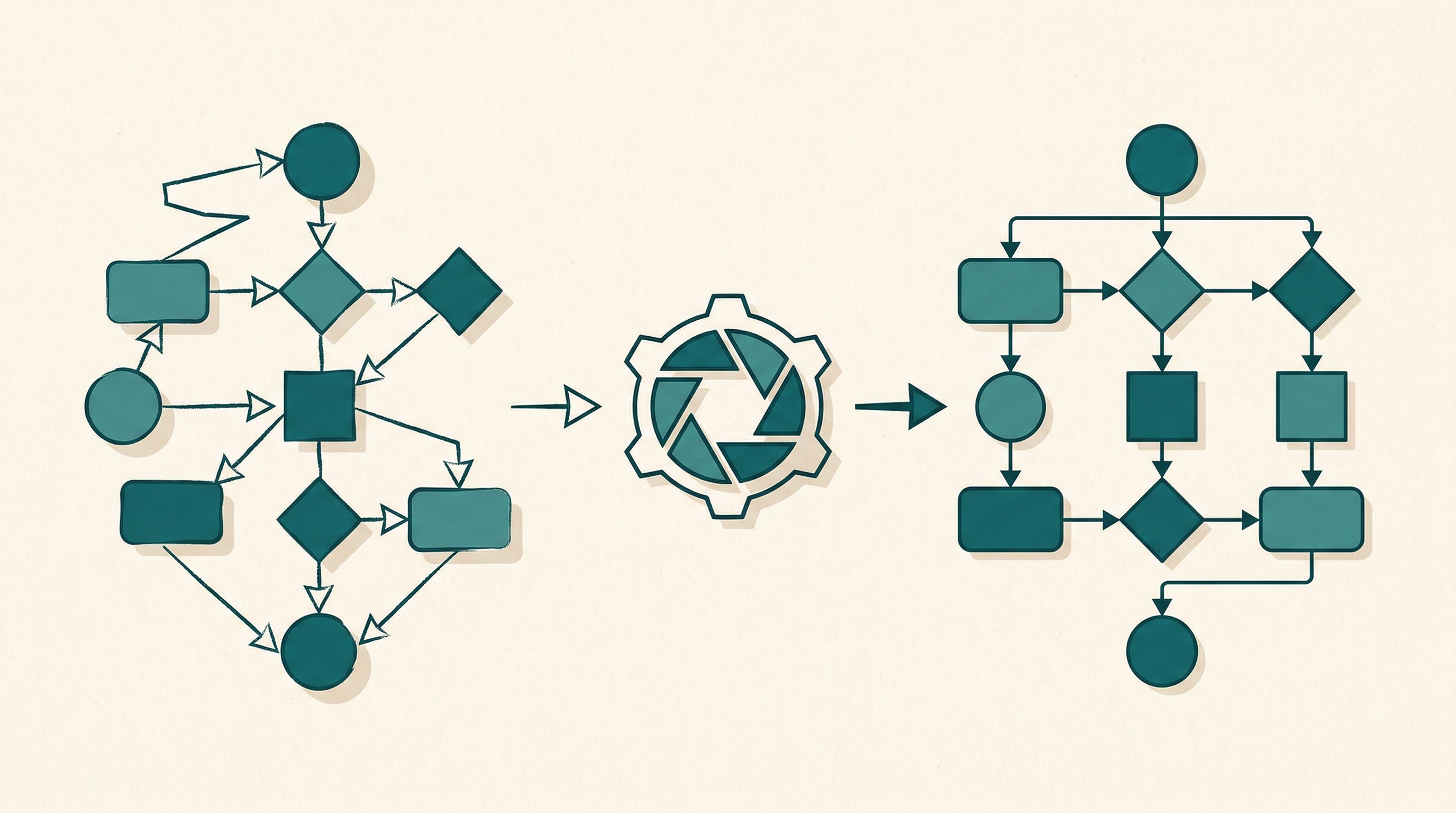
Your Mermaid diagram looks great in the preview. Then you open DevTools and discover you just shipped 1.1MB of JavaScript so a reader could see a static flowchart.
Mermaid.js is a parser, a renderer, and an entire layout engine. It needs all of that to turn text into SVG — but it only needs to do it once. After that, the SVG never changes. There’s no reason to make every reader’s browser repeat that work.
This tutorial shows you how to move Mermaid rendering to build time using rehype-mermaid and Playwright. The result: inline SVG in your HTML, zero client-side JavaScript for diagrams, and pages that load measurably faster.
What You’ll Build
By the end of this post, your Mermaid code fences will render to static SVG at build time. Here’s the pipeline:
%3b%7d%23mermaid-0 .cluster rect%7bfill:hsl(0%2c 0%25%2c 98.9215686275%25)%3bstroke:%23707070%3bstroke-width:1px%3b%7d%23mermaid-0 .cluster text%7bfill:%23333%3b%7d%23mermaid-0 .cluster span%7bcolor:%23333%3b%7d%23mermaid-0 div.mermaidTooltip%7bposition:absolute%3btext-align:center%3bmax-width:200px%3bpadding:2px%3bfont-family:arial%2csans-serif%3bfont-size:12px%3bbackground:hsl(-160%2c 0%25%2c 93.3333333333%25)%3bborder:1px solid %23707070%3bborder-radius:2px%3bpointer-events:none%3bz-index:100%3b%7d%23mermaid-0 .flowchartTitleText%7btext-anchor:middle%3bfont-size:18px%3bfill:black%3b%7d%23mermaid-0 rect.text%7bfill:none%3bstroke-width:0%3b%7d%23mermaid-0 .icon-shape%2c%23mermaid-0 .image-shape%7bbackground-color:white%3btext-align:center%3b%7d%23mermaid-0 .icon-shape p%2c%23mermaid-0 .image-shape p%7bbackground-color:white%3bpadding:2px%3b%7d%23mermaid-0 .icon-shape .label rect%2c%23mermaid-0 .image-shape .label rect%7bopacity:0.5%3bbackground-color:white%3bfill:white%3b%7d%23mermaid-0 .label-icon%7bdisplay:inline-block%3bheight:1em%3boverflow:visible%3bvertical-align:-0.125em%3b%7d%23mermaid-0 .node .label-icon path%7bfill:currentColor%3bstroke:revert%3bstroke-width:revert%3b%7d%23mermaid-0 .node .neo-node%7bstroke:%23999%3b%7d%23mermaid-0 %5bdata-look='neo'%5d.node rect%2c%23mermaid-0 %5bdata-look='neo'%5d.cluster rect%2c%23mermaid-0 %5bdata-look='neo'%5d.node polygon%7bstroke:url(%23mermaid-0-gradient)%3bfilter:drop-shadow( 1px 2px 2px rgba(185%2c185%2c185%2c1))%3b%7d%23mermaid-0 %5bdata-look='neo'%5d.node path%7bstroke:url(%23mermaid-0-gradient)%3bstroke-width:1px%3b%7d%23mermaid-0 %5bdata-look='neo'%5d.node .outer-path%7bfilter:drop-shadow( 1px 2px 2px rgba(185%2c185%2c185%2c1))%3b%7d%23mermaid-0 %5bdata-look='neo'%5d.node .neo-line path%7bstroke:%23999%3bfilter:none%3b%7d%23mermaid-0 %5bdata-look='neo'%5d.node circle%7bstroke:url(%23mermaid-0-gradient)%3bfilter:drop-shadow( 1px 2px 2px rgba(185%2c185%2c185%2c1))%3b%7d%23mermaid-0 %5bdata-look='neo'%5d.node circle .state-start%7bfill:black%3b%7d%23mermaid-0 %5bdata-look='neo'%5d.icon-shape .icon%7bfill:url(%23mermaid-0-gradient)%3bfilter:drop-shadow( 1px 2px 2px rgba(185%2c185%2c185%2c1))%3b%7d%23mermaid-0 %5bdata-look='neo'%5d.icon-shape .icon-neo path%7bstroke:url(%23mermaid-0-gradient)%3bfilter:drop-shadow( 1px 2px 2px rgba(185%2c185%2c185%2c1))%3b%7d%23mermaid-0 :root%7b--mermaid-font-family:arial%2csans-serif%3b%7d%3c/style%3e%3cg%3e%3cmarker id='mermaid-0_flowchart-v2-pointEnd' class='marker flowchart-v2' viewBox='0 0 10 10' refX='5' refY='5' markerUnits='userSpaceOnUse' markerWidth='8' markerHeight='8' orient='auto'%3e%3cpath d='M 0 0 L 10 5 L 0 10 z' class='arrowMarkerPath' style='stroke-width: 1%3b stroke-dasharray: 1%2c 0%3b'/%3e%3c/marker%3e%3cmarker id='mermaid-0_flowchart-v2-pointStart' class='marker flowchart-v2' viewBox='0 0 10 10' refX='4.5' refY='5' markerUnits='userSpaceOnUse' markerWidth='8' markerHeight='8' orient='auto'%3e%3cpath d='M 0 5 L 10 10 L 10 0 z' class='arrowMarkerPath' style='stroke-width: 1%3b stroke-dasharray: 1%2c 0%3b'/%3e%3c/marker%3e%3cmarker id='mermaid-0_flowchart-v2-pointEnd-margin' class='marker flowchart-v2' viewBox='0 0 11.5 14' refX='11.5' refY='7' markerUnits='userSpaceOnUse' markerWidth='10.5' markerHeight='14' orient='auto'%3e%3cpath d='M 0 0 L 11.5 7 L 0 14 z' class='arrowMarkerPath' style='stroke-width: 0%3b stroke-dasharray: 1%2c 0%3b'/%3e%3c/marker%3e%3cmarker id='mermaid-0_flowchart-v2-pointStart-margin' class='marker flowchart-v2' viewBox='0 0 11.5 14' refX='1' refY='7' markerUnits='userSpaceOnUse' markerWidth='11.5' markerHeight='14' orient='auto'%3e%3cpolygon points='0%2c7 11.5%2c14 11.5%2c0' class='arrowMarkerPath' style='stroke-width: 0%3b stroke-dasharray: 1%2c 0%3b'/%3e%3c/marker%3e%3cmarker id='mermaid-0_flowchart-v2-circleEnd' class='marker flowchart-v2' viewBox='0 0 10 10' refX='11' refY='5' markerUnits='userSpaceOnUse' markerWidth='11' markerHeight='11' orient='auto'%3e%3ccircle cx='5' cy='5' r='5' class='arrowMarkerPath' style='stroke-width: 1%3b stroke-dasharray: 1%2c 0%3b'/%3e%3c/marker%3e%3cmarker id='mermaid-0_flowchart-v2-circleStart' class='marker flowchart-v2' viewBox='0 0 10 10' refX='-1' refY='5' markerUnits='userSpaceOnUse' markerWidth='11' markerHeight='11' orient='auto'%3e%3ccircle cx='5' cy='5' r='5' class='arrowMarkerPath' style='stroke-width: 1%3b stroke-dasharray: 1%2c 0%3b'/%3e%3c/marker%3e%3cmarker id='mermaid-0_flowchart-v2-circleEnd-margin' class='marker flowchart-v2' viewBox='0 0 10 10' refY='5' refX='12.25' markerUnits='userSpaceOnUse' markerWidth='14' markerHeight='14' orient='auto'%3e%3ccircle cx='5' cy='5' r='5' class='arrowMarkerPath' style='stroke-width: 0%3b stroke-dasharray: 1%2c 0%3b'/%3e%3c/marker%3e%3cmarker id='mermaid-0_flowchart-v2-circleStart-margin' class='marker flowchart-v2' viewBox='0 0 10 10' refX='-2' refY='5' markerUnits='userSpaceOnUse' markerWidth='14' markerHeight='14' orient='auto'%3e%3ccircle cx='5' cy='5' r='5' class='arrowMarkerPath' style='stroke-width: 0%3b stroke-dasharray: 1%2c 0%3b'/%3e%3c/marker%3e%3cmarker id='mermaid-0_flowchart-v2-crossEnd' class='marker cross flowchart-v2' viewBox='0 0 11 11' refX='12' refY='5.2' markerUnits='userSpaceOnUse' markerWidth='11' markerHeight='11' orient='auto'%3e%3cpath d='M 1%2c1 l 9%2c9 M 10%2c1 l -9%2c9' class='arrowMarkerPath' style='stroke-width: 2%3b stroke-dasharray: 1%2c 0%3b'/%3e%3c/marker%3e%3cmarker id='mermaid-0_flowchart-v2-crossStart' class='marker cross flowchart-v2' viewBox='0 0 11 11' refX='-1' refY='5.2' markerUnits='userSpaceOnUse' markerWidth='11' markerHeight='11' orient='auto'%3e%3cpath d='M 1%2c1 l 9%2c9 M 10%2c1 l -9%2c9' class='arrowMarkerPath' style='stroke-width: 2%3b stroke-dasharray: 1%2c 0%3b'/%3e%3c/marker%3e%3cmarker id='mermaid-0_flowchart-v2-crossEnd-margin' class='marker cross flowchart-v2' viewBox='0 0 15 15' refX='17.7' refY='7.5' markerUnits='userSpaceOnUse' markerWidth='12' markerHeight='12' orient='auto'%3e%3cpath d='M 1%2c1 L 14%2c14 M 1%2c14 L 14%2c1' class='arrowMarkerPath' style='stroke-width: 2.5%3b'/%3e%3c/marker%3e%3cmarker id='mermaid-0_flowchart-v2-crossStart-margin' class='marker cross flowchart-v2' viewBox='0 0 15 15' refX='-3.5' refY='7.5' markerUnits='userSpaceOnUse' markerWidth='12' markerHeight='12' orient='auto'%3e%3cpath d='M 1%2c1 L 14%2c14 M 1%2c14 L 14%2c1' class='arrowMarkerPath' style='stroke-width: 2.5%3b stroke-dasharray: 1%2c 0%3b'/%3e%3c/marker%3e%3cg class='root'%3e%3cg class='clusters'/%3e%3cg class='edgePaths'%3e%3cpath d='M158.703%2c47L162.87%2c47C167.036%2c47%2c175.37%2c47%2c183.036%2c47C190.703%2c47%2c197.703%2c47%2c201.203%2c47L204.703%2c47' id='mermaid-0-L_A_B_0' class='edge-thickness-normal edge-pattern-solid edge-thickness-normal edge-pattern-solid flowchart-link' style='%3b' data-edge='true' data-et='edge' data-id='L_A_B_0' data-points='W3sieCI6MTU4LjcwMzEyNSwieSI6NDd9LHsieCI6MTgzLjcwMzEyNSwieSI6NDd9LHsieCI6MjA4LjcwMzEyNSwieSI6NDd9XQ==' data-look='classic' marker-end='url(%23mermaid-0_flowchart-v2-pointEnd)'/%3e%3cpath d='M324.719%2c47L328.885%2c47C333.052%2c47%2c341.385%2c47%2c349.052%2c47C356.719%2c47%2c363.719%2c47%2c367.219%2c47L370.719%2c47' id='mermaid-0-L_B_C_0' class='edge-thickness-normal edge-pattern-solid edge-thickness-normal edge-pattern-solid flowchart-link' style='%3b' data-edge='true' data-et='edge' data-id='L_B_C_0' data-points='W3sieCI6MzI0LjcxODc1LCJ5Ijo0N30seyJ4IjozNDkuNzE4NzUsInkiOjQ3fSx7IngiOjM3NC43MTg3NSwieSI6NDd9XQ==' data-look='classic' marker-end='url(%23mermaid-0_flowchart-v2-pointEnd)'/%3e%3cpath d='M489.875%2c47L494.042%2c47C498.208%2c47%2c506.542%2c47%2c514.208%2c47C521.875%2c47%2c528.875%2c47%2c532.375%2c47L535.875%2c47' id='mermaid-0-L_C_D_0' class='edge-thickness-normal edge-pattern-solid edge-thickness-normal edge-pattern-solid flowchart-link' style='%3b' data-edge='true' data-et='edge' data-id='L_C_D_0' data-points='W3sieCI6NDg5Ljg3NSwieSI6NDd9LHsieCI6NTE0Ljg3NSwieSI6NDd9LHsieCI6NTM5Ljg3NSwieSI6NDd9XQ==' data-look='classic' marker-end='url(%23mermaid-0_flowchart-v2-pointEnd)'/%3e%3cpath d='M716.359%2c47L720.526%2c47C724.693%2c47%2c733.026%2c47%2c740.693%2c47C748.359%2c47%2c755.359%2c47%2c758.859%2c47L762.359%2c47' id='mermaid-0-L_D_E_0' class='edge-thickness-normal edge-pattern-solid edge-thickness-normal edge-pattern-solid flowchart-link' style='%3b' data-edge='true' data-et='edge' data-id='L_D_E_0' data-points='W3sieCI6NzE2LjM1OTM3NSwieSI6NDd9LHsieCI6NzQxLjM1OTM3NSwieSI6NDd9LHsieCI6NzY2LjM1OTM3NSwieSI6NDd9XQ==' data-look='classic' marker-end='url(%23mermaid-0_flowchart-v2-pointEnd)'/%3e%3cpath d='M979.297%2c47L983.464%2c47C987.63%2c47%2c995.964%2c47%2c1003.63%2c47C1011.297%2c47%2c1018.297%2c47%2c1021.797%2c47L1025.297%2c47' id='mermaid-0-L_E_F_0' class='edge-thickness-normal edge-pattern-solid edge-thickness-normal edge-pattern-solid flowchart-link' style='%3b' data-edge='true' data-et='edge' data-id='L_E_F_0' data-points='W3sieCI6OTc5LjI5Njg3NSwieSI6NDd9LHsieCI6MTAwNC4yOTY4NzUsInkiOjQ3fSx7IngiOjEwMjkuMjk2ODc1LCJ5Ijo0N31d' data-look='classic' marker-end='url(%23mermaid-0_flowchart-v2-pointEnd)'/%3e%3cpath d='M1165.781%2c47L1169.948%2c47C1174.115%2c47%2c1182.448%2c47%2c1190.115%2c47C1197.781%2c47%2c1204.781%2c47%2c1208.281%2c47L1211.781%2c47' id='mermaid-0-L_F_G_0' class='edge-thickness-normal edge-pattern-solid edge-thickness-normal edge-pattern-solid flowchart-link' style='%3b' data-edge='true' data-et='edge' data-id='L_F_G_0' data-points='W3sieCI6MTE2NS43ODEyNSwieSI6NDd9LHsieCI6MTE5MC43ODEyNSwieSI6NDd9LHsieCI6MTIxNS43ODEyNSwieSI6NDd9XQ==' data-look='classic' marker-end='url(%23mermaid-0_flowchart-v2-pointEnd)'/%3e%3c/g%3e%3cg class='edgeLabels'%3e%3cg class='edgeLabel'%3e%3cg class='label' data-id='L_A_B_0' transform='translate(0%2c 0)'%3e%3cforeignObject width='0' height='0'%3e%3cdiv xmlns='http://www.w3.org/1999/xhtml' class='labelBkg' style='display: table-cell%3b white-space: nowrap%3b line-height: 1.5%3b max-width: 200px%3b text-align: center%3b'%3e%3cspan class='edgeLabel'%3e%3c/span%3e%3c/div%3e%3c/foreignObject%3e%3c/g%3e%3c/g%3e%3cg class='edgeLabel'%3e%3cg class='label' data-id='L_B_C_0' transform='translate(0%2c 0)'%3e%3cforeignObject width='0' height='0'%3e%3cdiv xmlns='http://www.w3.org/1999/xhtml' class='labelBkg' style='display: table-cell%3b white-space: nowrap%3b line-height: 1.5%3b max-width: 200px%3b text-align: center%3b'%3e%3cspan class='edgeLabel'%3e%3c/span%3e%3c/div%3e%3c/foreignObject%3e%3c/g%3e%3c/g%3e%3cg class='edgeLabel'%3e%3cg class='label' data-id='L_C_D_0' transform='translate(0%2c 0)'%3e%3cforeignObject width='0' height='0'%3e%3cdiv xmlns='http://www.w3.org/1999/xhtml' class='labelBkg' style='display: table-cell%3b white-space: nowrap%3b line-height: 1.5%3b max-width: 200px%3b text-align: center%3b'%3e%3cspan class='edgeLabel'%3e%3c/span%3e%3c/div%3e%3c/foreignObject%3e%3c/g%3e%3c/g%3e%3cg class='edgeLabel'%3e%3cg class='label' data-id='L_D_E_0' transform='translate(0%2c 0)'%3e%3cforeignObject width='0' height='0'%3e%3cdiv xmlns='http://www.w3.org/1999/xhtml' class='labelBkg' style='display: table-cell%3b white-space: nowrap%3b line-height: 1.5%3b max-width: 200px%3b text-align: center%3b'%3e%3cspan class='edgeLabel'%3e%3c/span%3e%3c/div%3e%3c/foreignObject%3e%3c/g%3e%3c/g%3e%3cg class='edgeLabel'%3e%3cg class='label' data-id='L_E_F_0' transform='translate(0%2c 0)'%3e%3cforeignObject width='0' height='0'%3e%3cdiv xmlns='http://www.w3.org/1999/xhtml' class='labelBkg' style='display: table-cell%3b white-space: nowrap%3b line-height: 1.5%3b max-width: 200px%3b text-align: center%3b'%3e%3cspan class='edgeLabel'%3e%3c/span%3e%3c/div%3e%3c/foreignObject%3e%3c/g%3e%3c/g%3e%3cg class='edgeLabel'%3e%3cg class='label' data-id='L_F_G_0' transform='translate(0%2c 0)'%3e%3cforeignObject width='0' height='0'%3e%3cdiv xmlns='http://www.w3.org/1999/xhtml' class='labelBkg' style='display: table-cell%3b white-space: nowrap%3b line-height: 1.5%3b max-width: 200px%3b text-align: center%3b'%3e%3cspan class='edgeLabel'%3e%3c/span%3e%3c/div%3e%3c/foreignObject%3e%3c/g%3e%3c/g%3e%3c/g%3e%3cg class='nodes'%3e%3cg class='node default' id='mermaid-0-flowchart-A-0' data-look='classic' transform='translate(83.3515625%2c 47)'%3e%3crect class='basic label-container' style='' x='-75.3515625' y='-27' width='150.703125' height='54'/%3e%3cg class='label' style='' transform='translate(-45.3515625%2c -12)'%3e%3crect/%3e%3cforeignObject width='90.703125' height='24'%3e%3cdiv xmlns='http://www.w3.org/1999/xhtml' style='display: table-cell%3b white-space: nowrap%3b line-height: 1.5%3b max-width: 200px%3b text-align: center%3b'%3e%3cspan class='nodeLabel'%3e%3cp%3eMDX Source%3c/p%3e%3c/span%3e%3c/div%3e%3c/foreignObject%3e%3c/g%3e%3c/g%3e%3cg class='node default' id='mermaid-0-flowchart-B-1' data-look='classic' transform='translate(266.7109375%2c 47)'%3e%3crect class='basic label-container' style='' x='-58.0078125' y='-27' width='116.015625' height='54'/%3e%3cg class='label' style='' transform='translate(-28.0078125%2c -12)'%3e%3crect/%3e%3cforeignObject width='56.015625' height='24'%3e%3cdiv xmlns='http://www.w3.org/1999/xhtml' style='display: table-cell%3b white-space: nowrap%3b line-height: 1.5%3b max-width: 200px%3b text-align: center%3b'%3e%3cspan class='nodeLabel'%3e%3cp%3eRemark%3c/p%3e%3c/span%3e%3c/div%3e%3c/foreignObject%3e%3c/g%3e%3c/g%3e%3cg class='node default' id='mermaid-0-flowchart-C-3' data-look='classic' transform='translate(432.296875%2c 47)'%3e%3crect class='basic label-container' style='' x='-57.578125' y='-27' width='115.15625' height='54'/%3e%3cg class='label' style='' transform='translate(-27.578125%2c -12)'%3e%3crect/%3e%3cforeignObject width='55.15625' height='24'%3e%3cdiv xmlns='http://www.w3.org/1999/xhtml' style='display: table-cell%3b white-space: nowrap%3b line-height: 1.5%3b max-width: 200px%3b text-align: center%3b'%3e%3cspan class='nodeLabel'%3e%3cp%3eRehype%3c/p%3e%3c/span%3e%3c/div%3e%3c/foreignObject%3e%3c/g%3e%3c/g%3e%3cg class='node default' id='mermaid-0-flowchart-D-5' data-look='classic' transform='translate(628.1171875%2c 47)'%3e%3crect class='basic label-container' style='' x='-88.2421875' y='-27' width='176.484375' height='54'/%3e%3cg class='label' style='' transform='translate(-58.2421875%2c -12)'%3e%3crect/%3e%3cforeignObject width='116.484375' height='24'%3e%3cdiv xmlns='http://www.w3.org/1999/xhtml' style='display: table-cell%3b white-space: nowrap%3b line-height: 1.5%3b max-width: 200px%3b text-align: center%3b'%3e%3cspan class='nodeLabel'%3e%3cp%3erehype-mermaid%3c/p%3e%3c/span%3e%3c/div%3e%3c/foreignObject%3e%3c/g%3e%3c/g%3e%3cg class='node default' id='mermaid-0-flowchart-E-7' data-look='classic' transform='translate(872.828125%2c 47)'%3e%3crect class='basic label-container' style='' x='-106.46875' y='-39' width='212.9375' height='78'/%3e%3cg class='label' style='' transform='translate(-76.46875%2c -24)'%3e%3crect/%3e%3cforeignObject width='152.9375' height='48'%3e%3cdiv xmlns='http://www.w3.org/1999/xhtml' style='display: table-cell%3b white-space: nowrap%3b line-height: 1.5%3b max-width: 200px%3b text-align: center%3b'%3e%3cspan class='nodeLabel'%3e%3cp%3ePlaywright%3cbr /%3e(headless Chromium)%3c/p%3e%3c/span%3e%3c/div%3e%3c/foreignObject%3e%3c/g%3e%3c/g%3e%3cg class='node default' id='mermaid-0-flowchart-F-9' data-look='classic' transform='translate(1097.5390625%2c 47)'%3e%3crect class='basic label-container' style='' x='-68.2421875' y='-27' width='136.484375' height='54'/%3e%3cg class='label' style='' transform='translate(-38.2421875%2c -12)'%3e%3crect/%3e%3cforeignObject width='76.484375' height='24'%3e%3cdiv xmlns='http://www.w3.org/1999/xhtml' style='display: table-cell%3b white-space: nowrap%3b line-height: 1.5%3b max-width: 200px%3b text-align: center%3b'%3e%3cspan class='nodeLabel'%3e%3cp%3eInline SVG%3c/p%3e%3c/span%3e%3c/div%3e%3c/foreignObject%3e%3c/g%3e%3c/g%3e%3cg class='node default' id='mermaid-0-flowchart-G-11' data-look='classic' transform='translate(1289.7890625%2c 47)'%3e%3crect class='basic label-container' style='' x='-74.0078125' y='-27' width='148.015625' height='54'/%3e%3cg class='label' style='' transform='translate(-44.0078125%2c -12)'%3e%3crect/%3e%3cforeignObject width='88.015625' height='24'%3e%3cdiv xmlns='http://www.w3.org/1999/xhtml' style='display: table-cell%3b white-space: nowrap%3b line-height: 1.5%3b max-width: 200px%3b text-align: center%3b'%3e%3cspan class='nodeLabel'%3e%3cp%3eStatic HTML%3c/p%3e%3c/span%3e%3c/div%3e%3c/foreignObject%3e%3c/g%3e%3c/g%3e%3c/g%3e%3c/g%3e%3c/g%3e%3cdefs%3e%3cfilter id='mermaid-0-drop-shadow' height='130%25' width='130%25'%3e%3cfeDropShadow dx='4' dy='4' stdDeviation='0' flood-opacity='0.06' flood-color='black'/%3e%3c/filter%3e%3c/defs%3e%3cdefs%3e%3cfilter id='mermaid-0-drop-shadow-small' height='150%25' width='150%25'%3e%3cfeDropShadow dx='2' dy='2' stdDeviation='0' flood-opacity='0.06' flood-color='black'/%3e%3c/filter%3e%3c/defs%3e%3clinearGradient id='mermaid-0-gradient' gradientUnits='objectBoundingBox' x1='0%25' y1='0%25' x2='100%25' y2='0%25'%3e%3cstop offset='0%25' stop-color='hsl(0%2c 0%25%2c 83.3333333333%25)' stop-opacity='1'/%3e%3cstop offset='100%25' stop-color='hsl(0%2c 0%25%2c 88.9215686275%25)' stop-opacity='1'/%3e%3c/linearGradient%3e%3c/svg%3e)
Every diagram on this page went through that pipeline. No JavaScript was harmed in the rendering of these SVGs.
The Cost of Client-Side Mermaid
Before we fix the problem, let’s quantify it. Here’s what Mermaid.js adds to your page when loaded client-side:
| Metric | Client-Side Mermaid | Build-Time SVG |
|---|---|---|
| JavaScript shipped | ~1.1 MB (minified) | 0 KB |
| Parse + render time | 200-800ms (per page load) | 0ms (done at build) |
| First Contentful Paint | Blocked until JS executes | Immediate |
| Works without JavaScript | No | Yes |
| Cumulative Layout Shift | Diagram pops in late | 0 (SVG in initial HTML) |
| Build time cost | None | ~2-5s (one-time, cached) |
The tradeoff is clear: a few extra seconds at build time eliminates over a megabyte of JavaScript and hundreds of milliseconds of render-blocking work on every single page load.
Prerequisites
You need three things:
- Astro 5.x with MDX support (
@astrojs/mdx) - Node.js 20+ (for Playwright)
- A terminal and about 10 minutes
Step 1: Install Dependencies
pnpm add rehype-mermaid mermaidpnpm add -D playwrightnpx playwright install --with-deps chromiumnpm install rehype-mermaid mermaidnpm install -D playwrightnpx playwright install --with-deps chromiumyarn add rehype-mermaid mermaidyarn add -D playwrightnpx playwright install --with-deps chromiumThree packages, one browser binary:
rehype-mermaid— the rehype plugin that intercepts Mermaid code fencesmermaid— the diagram parser (used at build time only)playwright— headless Chromium that Mermaid needs to measure and layout SVG nodes
Step 2: Configure the Rehype Plugin
Add rehype-mermaid to your Astro config. The critical detail: it must run as a rehype plugin (HTML-level), not a remark plugin (Markdown-level).
import rehypeMermaid from 'rehype-mermaid';
export default defineConfig({  // ... other config  markdown: {    rehypePlugins: [      // Other rehype plugins (slug, autolink-headings, etc.)      [rehypeMermaid, {        strategy: 'img-svg',        dark: true,      }],    ],  },});
Strategy Options
The strategy option controls how the SVG is embedded:
| Strategy | Output | Best For |
|---|---|---|
| 'inline-svg' | Raw <svg> in HTML | Maximum control, CSS styling |
| 'img-svg' | <img> with data URI SVG | Isolation from page styles |
| 'img-png' | <img> with data URI PNG | Email templates, RSS feeds |
| 'pre-mermaid' | Keeps code fence (no render) | Client-side fallback |
We use img-svg because it isolates the diagram from your page’s CSS while keeping the SVG crisp at any zoom level. If you need to style diagram nodes with your own CSS, switch to inline-svg.
The dark: true flag generates a dark-mode variant automatically.
Step 3: Write Diagrams in MDX
Now write Mermaid diagrams exactly as you would normally — in fenced code blocks with the mermaid language tag. The plugin intercepts them at build time and replaces the code fence with rendered SVG.
Flowcharts
```mermaidgraph TD A[User Request] --> B{Cached?} B -->|Yes| C[Return Cache] B -->|No| D[Query Database] D --> E[Build Response] E --> F[Store in Cache] F --> C```Renders to:
%3b%7d%23mermaid-1 .cluster rect%7bfill:hsl(0%2c 0%25%2c 98.9215686275%25)%3bstroke:%23707070%3bstroke-width:1px%3b%7d%23mermaid-1 .cluster text%7bfill:%23333%3b%7d%23mermaid-1 .cluster span%7bcolor:%23333%3b%7d%23mermaid-1 div.mermaidTooltip%7bposition:absolute%3btext-align:center%3bmax-width:200px%3bpadding:2px%3bfont-family:arial%2csans-serif%3bfont-size:12px%3bbackground:hsl(-160%2c 0%25%2c 93.3333333333%25)%3bborder:1px solid %23707070%3bborder-radius:2px%3bpointer-events:none%3bz-index:100%3b%7d%23mermaid-1 .flowchartTitleText%7btext-anchor:middle%3bfont-size:18px%3bfill:black%3b%7d%23mermaid-1 rect.text%7bfill:none%3bstroke-width:0%3b%7d%23mermaid-1 .icon-shape%2c%23mermaid-1 .image-shape%7bbackground-color:white%3btext-align:center%3b%7d%23mermaid-1 .icon-shape p%2c%23mermaid-1 .image-shape p%7bbackground-color:white%3bpadding:2px%3b%7d%23mermaid-1 .icon-shape .label rect%2c%23mermaid-1 .image-shape .label rect%7bopacity:0.5%3bbackground-color:white%3bfill:white%3b%7d%23mermaid-1 .label-icon%7bdisplay:inline-block%3bheight:1em%3boverflow:visible%3bvertical-align:-0.125em%3b%7d%23mermaid-1 .node .label-icon path%7bfill:currentColor%3bstroke:revert%3bstroke-width:revert%3b%7d%23mermaid-1 .node .neo-node%7bstroke:%23999%3b%7d%23mermaid-1 %5bdata-look='neo'%5d.node rect%2c%23mermaid-1 %5bdata-look='neo'%5d.cluster rect%2c%23mermaid-1 %5bdata-look='neo'%5d.node polygon%7bstroke:url(%23mermaid-1-gradient)%3bfilter:drop-shadow( 1px 2px 2px rgba(185%2c185%2c185%2c1))%3b%7d%23mermaid-1 %5bdata-look='neo'%5d.node path%7bstroke:url(%23mermaid-1-gradient)%3bstroke-width:1px%3b%7d%23mermaid-1 %5bdata-look='neo'%5d.node .outer-path%7bfilter:drop-shadow( 1px 2px 2px rgba(185%2c185%2c185%2c1))%3b%7d%23mermaid-1 %5bdata-look='neo'%5d.node .neo-line path%7bstroke:%23999%3bfilter:none%3b%7d%23mermaid-1 %5bdata-look='neo'%5d.node circle%7bstroke:url(%23mermaid-1-gradient)%3bfilter:drop-shadow( 1px 2px 2px rgba(185%2c185%2c185%2c1))%3b%7d%23mermaid-1 %5bdata-look='neo'%5d.node circle .state-start%7bfill:black%3b%7d%23mermaid-1 %5bdata-look='neo'%5d.icon-shape .icon%7bfill:url(%23mermaid-1-gradient)%3bfilter:drop-shadow( 1px 2px 2px rgba(185%2c185%2c185%2c1))%3b%7d%23mermaid-1 %5bdata-look='neo'%5d.icon-shape .icon-neo path%7bstroke:url(%23mermaid-1-gradient)%3bfilter:drop-shadow( 1px 2px 2px rgba(185%2c185%2c185%2c1))%3b%7d%23mermaid-1 :root%7b--mermaid-font-family:arial%2csans-serif%3b%7d%3c/style%3e%3cg%3e%3cmarker id='mermaid-1_flowchart-v2-pointEnd' class='marker flowchart-v2' viewBox='0 0 10 10' refX='5' refY='5' markerUnits='userSpaceOnUse' markerWidth='8' markerHeight='8' orient='auto'%3e%3cpath d='M 0 0 L 10 5 L 0 10 z' class='arrowMarkerPath' style='stroke-width: 1%3b stroke-dasharray: 1%2c 0%3b'/%3e%3c/marker%3e%3cmarker id='mermaid-1_flowchart-v2-pointStart' class='marker flowchart-v2' viewBox='0 0 10 10' refX='4.5' refY='5' markerUnits='userSpaceOnUse' markerWidth='8' markerHeight='8' orient='auto'%3e%3cpath d='M 0 5 L 10 10 L 10 0 z' class='arrowMarkerPath' style='stroke-width: 1%3b stroke-dasharray: 1%2c 0%3b'/%3e%3c/marker%3e%3cmarker id='mermaid-1_flowchart-v2-pointEnd-margin' class='marker flowchart-v2' viewBox='0 0 11.5 14' refX='11.5' refY='7' markerUnits='userSpaceOnUse' markerWidth='10.5' markerHeight='14' orient='auto'%3e%3cpath d='M 0 0 L 11.5 7 L 0 14 z' class='arrowMarkerPath' style='stroke-width: 0%3b stroke-dasharray: 1%2c 0%3b'/%3e%3c/marker%3e%3cmarker id='mermaid-1_flowchart-v2-pointStart-margin' class='marker flowchart-v2' viewBox='0 0 11.5 14' refX='1' refY='7' markerUnits='userSpaceOnUse' markerWidth='11.5' markerHeight='14' orient='auto'%3e%3cpolygon points='0%2c7 11.5%2c14 11.5%2c0' class='arrowMarkerPath' style='stroke-width: 0%3b stroke-dasharray: 1%2c 0%3b'/%3e%3c/marker%3e%3cmarker id='mermaid-1_flowchart-v2-circleEnd' class='marker flowchart-v2' viewBox='0 0 10 10' refX='11' refY='5' markerUnits='userSpaceOnUse' markerWidth='11' markerHeight='11' orient='auto'%3e%3ccircle cx='5' cy='5' r='5' class='arrowMarkerPath' style='stroke-width: 1%3b stroke-dasharray: 1%2c 0%3b'/%3e%3c/marker%3e%3cmarker id='mermaid-1_flowchart-v2-circleStart' class='marker flowchart-v2' viewBox='0 0 10 10' refX='-1' refY='5' markerUnits='userSpaceOnUse' markerWidth='11' markerHeight='11' orient='auto'%3e%3ccircle cx='5' cy='5' r='5' class='arrowMarkerPath' style='stroke-width: 1%3b stroke-dasharray: 1%2c 0%3b'/%3e%3c/marker%3e%3cmarker id='mermaid-1_flowchart-v2-circleEnd-margin' class='marker flowchart-v2' viewBox='0 0 10 10' refY='5' refX='12.25' markerUnits='userSpaceOnUse' markerWidth='14' markerHeight='14' orient='auto'%3e%3ccircle cx='5' cy='5' r='5' class='arrowMarkerPath' style='stroke-width: 0%3b stroke-dasharray: 1%2c 0%3b'/%3e%3c/marker%3e%3cmarker id='mermaid-1_flowchart-v2-circleStart-margin' class='marker flowchart-v2' viewBox='0 0 10 10' refX='-2' refY='5' markerUnits='userSpaceOnUse' markerWidth='14' markerHeight='14' orient='auto'%3e%3ccircle cx='5' cy='5' r='5' class='arrowMarkerPath' style='stroke-width: 0%3b stroke-dasharray: 1%2c 0%3b'/%3e%3c/marker%3e%3cmarker id='mermaid-1_flowchart-v2-crossEnd' class='marker cross flowchart-v2' viewBox='0 0 11 11' refX='12' refY='5.2' markerUnits='userSpaceOnUse' markerWidth='11' markerHeight='11' orient='auto'%3e%3cpath d='M 1%2c1 l 9%2c9 M 10%2c1 l -9%2c9' class='arrowMarkerPath' style='stroke-width: 2%3b stroke-dasharray: 1%2c 0%3b'/%3e%3c/marker%3e%3cmarker id='mermaid-1_flowchart-v2-crossStart' class='marker cross flowchart-v2' viewBox='0 0 11 11' refX='-1' refY='5.2' markerUnits='userSpaceOnUse' markerWidth='11' markerHeight='11' orient='auto'%3e%3cpath d='M 1%2c1 l 9%2c9 M 10%2c1 l -9%2c9' class='arrowMarkerPath' style='stroke-width: 2%3b stroke-dasharray: 1%2c 0%3b'/%3e%3c/marker%3e%3cmarker id='mermaid-1_flowchart-v2-crossEnd-margin' class='marker cross flowchart-v2' viewBox='0 0 15 15' refX='17.7' refY='7.5' markerUnits='userSpaceOnUse' markerWidth='12' markerHeight='12' orient='auto'%3e%3cpath d='M 1%2c1 L 14%2c14 M 1%2c14 L 14%2c1' class='arrowMarkerPath' style='stroke-width: 2.5%3b'/%3e%3c/marker%3e%3cmarker id='mermaid-1_flowchart-v2-crossStart-margin' class='marker cross flowchart-v2' viewBox='0 0 15 15' refX='-3.5' refY='7.5' markerUnits='userSpaceOnUse' markerWidth='12' markerHeight='12' orient='auto'%3e%3cpath d='M 1%2c1 L 14%2c14 M 1%2c14 L 14%2c1' class='arrowMarkerPath' style='stroke-width: 2.5%3b stroke-dasharray: 1%2c 0%3b'/%3e%3c/marker%3e%3cg class='root'%3e%3cg class='clusters'/%3e%3cg class='edgePaths'%3e%3cpath d='M88.102%2c62L88.102%2c66.167C88.102%2c70.333%2c88.102%2c78.667%2c88.102%2c86.333C88.102%2c94%2c88.102%2c101%2c88.102%2c104.5L88.102%2c108' id='mermaid-1-L_A_B_0' class='edge-thickness-normal edge-pattern-solid edge-thickness-normal edge-pattern-solid flowchart-link' style='%3b' data-edge='true' data-et='edge' data-id='L_A_B_0' data-points='W3sieCI6ODguMTAxNTYyNSwieSI6NjJ9LHsieCI6ODguMTAxNTYyNSwieSI6ODd9LHsieCI6ODguMTAxNTYyNSwieSI6MTEyfV0=' data-look='classic' marker-end='url(%23mermaid-1_flowchart-v2-pointEnd)'/%3e%3cpath d='M63.834%2c205.779L56.704%2c215.99C49.574%2c226.202%2c35.314%2c246.624%2c28.185%2c267.502C21.055%2c288.38%2c21.055%2c309.714%2c21.055%2c329.047C21.055%2c348.38%2c21.055%2c365.714%2c21.055%2c383.047C21.055%2c400.38%2c21.055%2c417.714%2c21.055%2c435.047C21.055%2c452.38%2c21.055%2c469.714%2c21.055%2c487.047C21.055%2c504.38%2c21.055%2c521.714%2c21.055%2c539.047C21.055%2c556.38%2c21.055%2c573.714%2c25.9%2c586.138C30.746%2c598.563%2c40.437%2c606.079%2c45.282%2c609.837L50.128%2c613.595' id='mermaid-1-L_B_C_0' class='edge-thickness-normal edge-pattern-solid edge-thickness-normal edge-pattern-solid flowchart-link' style='%3b' data-edge='true' data-et='edge' data-id='L_B_C_0' data-points='W3sieCI6NjMuODMzODg5Mzk5NTgzMiwieSI6MjA1Ljc3OTIwMTg5OTU4MzJ9LHsieCI6MjEuMDU0Njg3NSwieSI6MjY3LjA0Njg3NX0seyJ4IjoyMS4wNTQ2ODc1LCJ5IjozMzEuMDQ2ODc1fSx7IngiOjIxLjA1NDY4NzUsInkiOjM4My4wNDY4NzV9LHsieCI6MjEuMDU0Njg3NSwieSI6NDM1LjA0Njg3NX0seyJ4IjoyMS4wNTQ2ODc1LCJ5Ijo0ODcuMDQ2ODc1fSx7IngiOjIxLjA1NDY4NzUsInkiOjUzOS4wNDY4NzV9LHsieCI6MjEuMDU0Njg3NSwieSI6NTkxLjA0Njg3NX0seyJ4Ijo1My4yODg3NjIwMTkyMzA3NywieSI6NjE2LjA0Njg3NX1d' data-look='classic' marker-end='url(%23mermaid-1_flowchart-v2-pointEnd)'/%3e%3cpath d='M112.369%2c205.779L119.499%2c215.99C126.629%2c226.202%2c140.889%2c246.624%2c148.019%2c262.336C155.148%2c278.047%2c155.148%2c289.047%2c155.148%2c294.547L155.148%2c300.047' id='mermaid-1-L_B_D_0' class='edge-thickness-normal edge-pattern-solid edge-thickness-normal edge-pattern-solid flowchart-link' style='%3b' data-edge='true' data-et='edge' data-id='L_B_D_0' data-points='W3sieCI6MTEyLjM2OTIzNTYwMDQxNjgsInkiOjIwNS43NzkyMDE4OTk1ODMyfSx7IngiOjE1NS4xNDg0Mzc1LCJ5IjoyNjcuMDQ2ODc1fSx7IngiOjE1NS4xNDg0Mzc1LCJ5IjozMDQuMDQ2ODc1fV0=' data-look='classic' marker-end='url(%23mermaid-1_flowchart-v2-pointEnd)'/%3e%3cpath d='M155.148%2c358.047L155.148%2c362.214C155.148%2c366.38%2c155.148%2c374.714%2c155.148%2c382.38C155.148%2c390.047%2c155.148%2c397.047%2c155.148%2c400.547L155.148%2c404.047' id='mermaid-1-L_D_E_0' class='edge-thickness-normal edge-pattern-solid edge-thickness-normal edge-pattern-solid flowchart-link' style='%3b' data-edge='true' data-et='edge' data-id='L_D_E_0' data-points='W3sieCI6MTU1LjE0ODQzNzUsInkiOjM1OC4wNDY4NzV9LHsieCI6MTU1LjE0ODQzNzUsInkiOjM4My4wNDY4NzV9LHsieCI6MTU1LjE0ODQzNzUsInkiOjQwOC4wNDY4NzV9XQ==' data-look='classic' marker-end='url(%23mermaid-1_flowchart-v2-pointEnd)'/%3e%3cpath d='M155.148%2c462.047L155.148%2c466.214C155.148%2c470.38%2c155.148%2c478.714%2c155.148%2c486.38C155.148%2c494.047%2c155.148%2c501.047%2c155.148%2c504.547L155.148%2c508.047' id='mermaid-1-L_E_F_0' class='edge-thickness-normal edge-pattern-solid edge-thickness-normal edge-pattern-solid flowchart-link' style='%3b' data-edge='true' data-et='edge' data-id='L_E_F_0' data-points='W3sieCI6MTU1LjE0ODQzNzUsInkiOjQ2Mi4wNDY4NzV9LHsieCI6MTU1LjE0ODQzNzUsInkiOjQ4Ny4wNDY4NzV9LHsieCI6MTU1LjE0ODQzNzUsInkiOjUxMi4wNDY4NzV9XQ==' data-look='classic' marker-end='url(%23mermaid-1_flowchart-v2-pointEnd)'/%3e%3cpath d='M155.148%2c566.047L155.148%2c570.214C155.148%2c574.38%2c155.148%2c582.714%2c150.303%2c590.638C145.457%2c598.563%2c135.766%2c606.079%2c130.921%2c609.837L126.075%2c613.595' id='mermaid-1-L_F_C_0' class='edge-thickness-normal edge-pattern-solid edge-thickness-normal edge-pattern-solid flowchart-link' style='%3b' data-edge='true' data-et='edge' data-id='L_F_C_0' data-points='W3sieCI6MTU1LjE0ODQzNzUsInkiOjU2Ni4wNDY4NzV9LHsieCI6MTU1LjE0ODQzNzUsInkiOjU5MS4wNDY4NzV9LHsieCI6MTIyLjkxNDM2Mjk4MDc2OTIzLCJ5Ijo2MTYuMDQ2ODc1fV0=' data-look='classic' marker-end='url(%23mermaid-1_flowchart-v2-pointEnd)'/%3e%3c/g%3e%3cg class='edgeLabels'%3e%3cg class='edgeLabel'%3e%3cg class='label' data-id='L_A_B_0' transform='translate(0%2c 0)'%3e%3cforeignObject width='0' height='0'%3e%3cdiv xmlns='http://www.w3.org/1999/xhtml' class='labelBkg' style='display: table-cell%3b white-space: nowrap%3b line-height: 1.5%3b max-width: 200px%3b text-align: center%3b'%3e%3cspan class='edgeLabel'%3e%3c/span%3e%3c/div%3e%3c/foreignObject%3e%3c/g%3e%3c/g%3e%3cg class='edgeLabel' transform='translate(21.0546875%2c 435.046875)'%3e%3cg class='label' data-id='L_B_C_0' transform='translate(-13.0546875%2c -12)'%3e%3cforeignObject width='26.109375' height='24'%3e%3cdiv xmlns='http://www.w3.org/1999/xhtml' class='labelBkg' style='display: table-cell%3b white-space: nowrap%3b line-height: 1.5%3b max-width: 200px%3b text-align: center%3b'%3e%3cspan class='edgeLabel'%3e%3cp%3eYes%3c/p%3e%3c/span%3e%3c/div%3e%3c/foreignObject%3e%3c/g%3e%3c/g%3e%3cg class='edgeLabel' transform='translate(155.1484375%2c 267.046875)'%3e%3cg class='label' data-id='L_B_D_0' transform='translate(-10.2265625%2c -12)'%3e%3cforeignObject width='20.453125' height='24'%3e%3cdiv xmlns='http://www.w3.org/1999/xhtml' class='labelBkg' style='display: table-cell%3b white-space: nowrap%3b line-height: 1.5%3b max-width: 200px%3b text-align: center%3b'%3e%3cspan class='edgeLabel'%3e%3cp%3eNo%3c/p%3e%3c/span%3e%3c/div%3e%3c/foreignObject%3e%3c/g%3e%3c/g%3e%3cg class='edgeLabel'%3e%3cg class='label' data-id='L_D_E_0' transform='translate(0%2c 0)'%3e%3cforeignObject width='0' height='0'%3e%3cdiv xmlns='http://www.w3.org/1999/xhtml' class='labelBkg' style='display: table-cell%3b white-space: nowrap%3b line-height: 1.5%3b max-width: 200px%3b text-align: center%3b'%3e%3cspan class='edgeLabel'%3e%3c/span%3e%3c/div%3e%3c/foreignObject%3e%3c/g%3e%3c/g%3e%3cg class='edgeLabel'%3e%3cg class='label' data-id='L_E_F_0' transform='translate(0%2c 0)'%3e%3cforeignObject width='0' height='0'%3e%3cdiv xmlns='http://www.w3.org/1999/xhtml' class='labelBkg' style='display: table-cell%3b white-space: nowrap%3b line-height: 1.5%3b max-width: 200px%3b text-align: center%3b'%3e%3cspan class='edgeLabel'%3e%3c/span%3e%3c/div%3e%3c/foreignObject%3e%3c/g%3e%3c/g%3e%3cg class='edgeLabel'%3e%3cg class='label' data-id='L_F_C_0' transform='translate(0%2c 0)'%3e%3cforeignObject width='0' height='0'%3e%3cdiv xmlns='http://www.w3.org/1999/xhtml' class='labelBkg' style='display: table-cell%3b white-space: nowrap%3b line-height: 1.5%3b max-width: 200px%3b text-align: center%3b'%3e%3cspan class='edgeLabel'%3e%3c/span%3e%3c/div%3e%3c/foreignObject%3e%3c/g%3e%3c/g%3e%3c/g%3e%3cg class='nodes'%3e%3cg class='node default' id='mermaid-1-flowchart-A-0' data-look='classic' transform='translate(88.1015625%2c 35)'%3e%3crect class='basic label-container' style='' x='-78.9140625' y='-27' width='157.828125' height='54'/%3e%3cg class='label' style='' transform='translate(-48.9140625%2c -12)'%3e%3crect/%3e%3cforeignObject width='97.828125' height='24'%3e%3cdiv xmlns='http://www.w3.org/1999/xhtml' style='display: table-cell%3b white-space: nowrap%3b line-height: 1.5%3b max-width: 200px%3b text-align: center%3b'%3e%3cspan class='nodeLabel'%3e%3cp%3eUser Request%3c/p%3e%3c/span%3e%3c/div%3e%3c/foreignObject%3e%3c/g%3e%3c/g%3e%3cg class='node default' id='mermaid-1-flowchart-B-1' data-look='classic' transform='translate(88.1015625%2c 171.0234375)'%3e%3cpolygon points='59.0234375%2c0 118.046875%2c-59.0234375 59.0234375%2c-118.046875 0%2c-59.0234375' class='label-container' transform='translate(-58.5234375%2c 59.0234375)'/%3e%3cg class='label' style='' transform='translate(-32.0234375%2c -12)'%3e%3crect/%3e%3cforeignObject width='64.046875' height='24'%3e%3cdiv xmlns='http://www.w3.org/1999/xhtml' style='display: table-cell%3b white-space: nowrap%3b line-height: 1.5%3b max-width: 200px%3b text-align: center%3b'%3e%3cspan class='nodeLabel'%3e%3cp%3eCached%3f%3c/p%3e%3c/span%3e%3c/div%3e%3c/foreignObject%3e%3c/g%3e%3c/g%3e%3cg class='node default' id='mermaid-1-flowchart-C-3' data-look='classic' transform='translate(88.1015625%2c 643.046875)'%3e%3crect class='basic label-container' style='' x='-79.359375' y='-27' width='158.71875' height='54'/%3e%3cg class='label' style='' transform='translate(-49.359375%2c -12)'%3e%3crect/%3e%3cforeignObject width='98.71875' height='24'%3e%3cdiv xmlns='http://www.w3.org/1999/xhtml' style='display: table-cell%3b white-space: nowrap%3b line-height: 1.5%3b max-width: 200px%3b text-align: center%3b'%3e%3cspan class='nodeLabel'%3e%3cp%3eReturn Cache%3c/p%3e%3c/span%3e%3c/div%3e%3c/foreignObject%3e%3c/g%3e%3c/g%3e%3cg class='node default' id='mermaid-1-flowchart-D-5' data-look='classic' transform='translate(155.1484375%2c 331.046875)'%3e%3crect class='basic label-container' style='' x='-88.2578125' y='-27' width='176.515625' height='54'/%3e%3cg class='label' style='' transform='translate(-58.2578125%2c -12)'%3e%3crect/%3e%3cforeignObject width='116.515625' height='24'%3e%3cdiv xmlns='http://www.w3.org/1999/xhtml' style='display: table-cell%3b white-space: nowrap%3b line-height: 1.5%3b max-width: 200px%3b text-align: center%3b'%3e%3cspan class='nodeLabel'%3e%3cp%3eQuery Database%3c/p%3e%3c/span%3e%3c/div%3e%3c/foreignObject%3e%3c/g%3e%3c/g%3e%3cg class='node default' id='mermaid-1-flowchart-E-7' data-look='classic' transform='translate(155.1484375%2c 435.046875)'%3e%3crect class='basic label-container' style='' x='-86.0390625' y='-27' width='172.078125' height='54'/%3e%3cg class='label' style='' transform='translate(-56.0390625%2c -12)'%3e%3crect/%3e%3cforeignObject width='112.078125' height='24'%3e%3cdiv xmlns='http://www.w3.org/1999/xhtml' style='display: table-cell%3b white-space: nowrap%3b line-height: 1.5%3b max-width: 200px%3b text-align: center%3b'%3e%3cspan class='nodeLabel'%3e%3cp%3eBuild Response%3c/p%3e%3c/span%3e%3c/div%3e%3c/foreignObject%3e%3c/g%3e%3c/g%3e%3cg class='node default' id='mermaid-1-flowchart-F-9' data-look='classic' transform='translate(155.1484375%2c 539.046875)'%3e%3crect class='basic label-container' style='' x='-82.921875' y='-27' width='165.84375' height='54'/%3e%3cg class='label' style='' transform='translate(-52.921875%2c -12)'%3e%3crect/%3e%3cforeignObject width='105.84375' height='24'%3e%3cdiv xmlns='http://www.w3.org/1999/xhtml' style='display: table-cell%3b white-space: nowrap%3b line-height: 1.5%3b max-width: 200px%3b text-align: center%3b'%3e%3cspan class='nodeLabel'%3e%3cp%3eStore in Cache%3c/p%3e%3c/span%3e%3c/div%3e%3c/foreignObject%3e%3c/g%3e%3c/g%3e%3c/g%3e%3c/g%3e%3c/g%3e%3cdefs%3e%3cfilter id='mermaid-1-drop-shadow' height='130%25' width='130%25'%3e%3cfeDropShadow dx='4' dy='4' stdDeviation='0' flood-opacity='0.06' flood-color='black'/%3e%3c/filter%3e%3c/defs%3e%3cdefs%3e%3cfilter id='mermaid-1-drop-shadow-small' height='150%25' width='150%25'%3e%3cfeDropShadow dx='2' dy='2' stdDeviation='0' flood-opacity='0.06' flood-color='black'/%3e%3c/filter%3e%3c/defs%3e%3clinearGradient id='mermaid-1-gradient' gradientUnits='objectBoundingBox' x1='0%25' y1='0%25' x2='100%25' y2='0%25'%3e%3cstop offset='0%25' stop-color='hsl(0%2c 0%25%2c 83.3333333333%25)' stop-opacity='1'/%3e%3cstop offset='100%25' stop-color='hsl(0%2c 0%25%2c 88.9215686275%25)' stop-opacity='1'/%3e%3c/linearGradient%3e%3c/svg%3e)
Sequence Diagrams
Sequence diagrams are where build-time rendering really shines. These are complex to layout and especially expensive to render client-side.
%3bfill:%23eee%3bstroke-width:1%3b%7d%23mermaid-2 rect.actor.outer-path%5bdata-look='neo'%5d%7bfilter:drop-shadow( 1px 2px 2px rgba(185%2c185%2c185%2c1))%3b%7d%23mermaid-2 rect.note%5bdata-look='neo'%5d%7bstroke:%23999%3bfill:%23666%3bfilter:drop-shadow( 1px 2px 2px rgba(185%2c185%2c185%2c1))%3b%7d%23mermaid-2 text.actor%26gt%3btspan%7bfill:%23333%3bstroke:none%3b%7d%23mermaid-2 .actor-line%7bstroke:hsl(0%2c 0%25%2c 83%25)%3b%7d%23mermaid-2 .innerArc%7bstroke-width:1.5%3bstroke-dasharray:none%3b%7d%23mermaid-2 .messageLine0%7bstroke-width:1.5%3bstroke-dasharray:none%3bstroke:%23333%3b%7d%23mermaid-2 .messageLine1%7bstroke-width:1.5%3bstroke-dasharray:2%2c2%3bstroke:%23333%3b%7d%23mermaid-2 %5bid%24='-arrowhead'%5d path%7bfill:%23333%3bstroke:%23333%3b%7d%23mermaid-2 .sequenceNumber%7bfill:white%3b%7d%23mermaid-2 %5bid%24='-sequencenumber'%5d%7bfill:%23333%3b%7d%23mermaid-2 %5bid%24='-crosshead'%5d path%7bfill:%23333%3bstroke:%23333%3b%7d%23mermaid-2 .messageText%7bfill:%23333%3bstroke:none%3b%7d%23mermaid-2 .labelBox%7bstroke:hsl(0%2c 0%25%2c 83%25)%3bfill:%23eee%3bfilter:none%3b%7d%23mermaid-2 .labelText%2c%23mermaid-2 .labelText%26gt%3btspan%7bfill:%23333%3bstroke:none%3b%7d%23mermaid-2 .loopText%2c%23mermaid-2 .loopText%26gt%3btspan%7bfill:%23333%3bstroke:none%3b%7d%23mermaid-2 .loopLine%7bstroke-width:2px%3bstroke-dasharray:2%2c2%3bstroke:hsl(0%2c 0%25%2c 83%25)%3bfill:hsl(0%2c 0%25%2c 83%25)%3b%7d%23mermaid-2 .note%7bstroke:%23999%3bfill:%23666%3b%7d%23mermaid-2 .noteText%2c%23mermaid-2 .noteText%26gt%3btspan%7bfill:white%3bstroke:none%3bfont-weight:normal%3b%7d%23mermaid-2 .activation0%7bfill:%23f4f4f4%3bstroke:%23666%3b%7d%23mermaid-2 .activation1%7bfill:%23f4f4f4%3bstroke:%23666%3b%7d%23mermaid-2 .activation2%7bfill:%23f4f4f4%3bstroke:%23666%3b%7d%23mermaid-2 .actorPopupMenu%7bposition:absolute%3b%7d%23mermaid-2 .actorPopupMenuPanel%7bposition:absolute%3bfill:%23eee%3bbox-shadow:0px 8px 16px 0px rgba(0%2c0%2c0%2c0.2)%3bfilter:drop-shadow(3px 5px 2px rgb(0 0 0 / 0.4))%3b%7d%23mermaid-2 .actor-man circle%2c%23mermaid-2 line%7bfill:%23eee%3bstroke-width:2px%3b%7d%23mermaid-2 g rect.rect%7bfilter:drop-shadow( 1px 2px 2px rgba(185%2c185%2c185%2c1))%3bstroke:%23999%3b%7d%23mermaid-2 .node .neo-node%7bstroke:%23999%3b%7d%23mermaid-2 %5bdata-look='neo'%5d.node rect%2c%23mermaid-2 %5bdata-look='neo'%5d.cluster rect%2c%23mermaid-2 %5bdata-look='neo'%5d.node polygon%7bstroke:url(%23mermaid-2-gradient)%3bfilter:drop-shadow( 1px 2px 2px rgba(185%2c185%2c185%2c1))%3b%7d%23mermaid-2 %5bdata-look='neo'%5d.node path%7bstroke:url(%23mermaid-2-gradient)%3bstroke-width:1px%3b%7d%23mermaid-2 %5bdata-look='neo'%5d.node .outer-path%7bfilter:drop-shadow( 1px 2px 2px rgba(185%2c185%2c185%2c1))%3b%7d%23mermaid-2 %5bdata-look='neo'%5d.node .neo-line path%7bstroke:%23999%3bfilter:none%3b%7d%23mermaid-2 %5bdata-look='neo'%5d.node circle%7bstroke:url(%23mermaid-2-gradient)%3bfilter:drop-shadow( 1px 2px 2px rgba(185%2c185%2c185%2c1))%3b%7d%23mermaid-2 %5bdata-look='neo'%5d.node circle .state-start%7bfill:black%3b%7d%23mermaid-2 %5bdata-look='neo'%5d.icon-shape .icon%7bfill:url(%23mermaid-2-gradient)%3bfilter:drop-shadow( 1px 2px 2px rgba(185%2c185%2c185%2c1))%3b%7d%23mermaid-2 %5bdata-look='neo'%5d.icon-shape .icon-neo path%7bstroke:url(%23mermaid-2-gradient)%3bfilter:drop-shadow( 1px 2px 2px rgba(185%2c185%2c185%2c1))%3b%7d%23mermaid-2 :root%7b--mermaid-font-family:arial%2csans-serif%3b%7d%3c/style%3e%3cg/%3e%3cdefs%3e%3csymbol id='mermaid-2-computer' width='24' height='24'%3e%3cpath transform='scale(.5)' d='M2 2v13h20v-13h-20zm18 11h-16v-9h16v9zm-10.228 6l.466-1h3.524l.467 1h-4.457zm14.228 3h-24l2-6h2.104l-1.33 4h18.45l-1.297-4h2.073l2 6zm-5-10h-14v-7h14v7z'/%3e%3c/symbol%3e%3c/defs%3e%3cdefs%3e%3csymbol id='mermaid-2-database' fill-rule='evenodd' clip-rule='evenodd'%3e%3cpath transform='scale(.5)' d='M12.258.001l.256.004.255.005.253.008.251.01.249.012.247.015.246.016.242.019.241.02.239.023.236.024.233.027.231.028.229.031.225.032.223.034.22.036.217.038.214.04.211.041.208.043.205.045.201.046.198.048.194.05.191.051.187.053.183.054.18.056.175.057.172.059.168.06.163.061.16.063.155.064.15.066.074.033.073.033.071.034.07.034.069.035.068.035.067.035.066.035.064.036.064.036.062.036.06.036.06.037.058.037.058.037.055.038.055.038.053.038.052.038.051.039.05.039.048.039.047.039.045.04.044.04.043.04.041.04.04.041.039.041.037.041.036.041.034.041.033.042.032.042.03.042.029.042.027.042.026.043.024.043.023.043.021.043.02.043.018.044.017.043.015.044.013.044.012.044.011.045.009.044.007.045.006.045.004.045.002.045.001.045v17l-.001.045-.002.045-.004.045-.006.045-.007.045-.009.044-.011.045-.012.044-.013.044-.015.044-.017.043-.018.044-.02.043-.021.043-.023.043-.024.043-.026.043-.027.042-.029.042-.03.042-.032.042-.033.042-.034.041-.036.041-.037.041-.039.041-.04.041-.041.04-.043.04-.044.04-.045.04-.047.039-.048.039-.05.039-.051.039-.052.038-.053.038-.055.038-.055.038-.058.037-.058.037-.06.037-.06.036-.062.036-.064.036-.064.036-.066.035-.067.035-.068.035-.069.035-.07.034-.071.034-.073.033-.074.033-.15.066-.155.064-.16.063-.163.061-.168.06-.172.059-.175.057-.18.056-.183.054-.187.053-.191.051-.194.05-.198.048-.201.046-.205.045-.208.043-.211.041-.214.04-.217.038-.22.036-.223.034-.225.032-.229.031-.231.028-.233.027-.236.024-.239.023-.241.02-.242.019-.246.016-.247.015-.249.012-.251.01-.253.008-.255.005-.256.004-.258.001-.258-.001-.256-.004-.255-.005-.253-.008-.251-.01-.249-.012-.247-.015-.245-.016-.243-.019-.241-.02-.238-.023-.236-.024-.234-.027-.231-.028-.228-.031-.226-.032-.223-.034-.22-.036-.217-.038-.214-.04-.211-.041-.208-.043-.204-.045-.201-.046-.198-.048-.195-.05-.19-.051-.187-.053-.184-.054-.179-.056-.176-.057-.172-.059-.167-.06-.164-.061-.159-.063-.155-.064-.151-.066-.074-.033-.072-.033-.072-.034-.07-.034-.069-.035-.068-.035-.067-.035-.066-.035-.064-.036-.063-.036-.062-.036-.061-.036-.06-.037-.058-.037-.057-.037-.056-.038-.055-.038-.053-.038-.052-.038-.051-.039-.049-.039-.049-.039-.046-.039-.046-.04-.044-.04-.043-.04-.041-.04-.04-.041-.039-.041-.037-.041-.036-.041-.034-.041-.033-.042-.032-.042-.03-.042-.029-.042-.027-.042-.026-.043-.024-.043-.023-.043-.021-.043-.02-.043-.018-.044-.017-.043-.015-.044-.013-.044-.012-.044-.011-.045-.009-.044-.007-.045-.006-.045-.004-.045-.002-.045-.001-.045v-17l.001-.045.002-.045.004-.045.006-.045.007-.045.009-.044.011-.045.012-.044.013-.044.015-.044.017-.043.018-.044.02-.043.021-.043.023-.043.024-.043.026-.043.027-.042.029-.042.03-.042.032-.042.033-.042.034-.041.036-.041.037-.041.039-.041.04-.041.041-.04.043-.04.044-.04.046-.04.046-.039.049-.039.049-.039.051-.039.052-.038.053-.038.055-.038.056-.038.057-.037.058-.037.06-.037.061-.036.062-.036.063-.036.064-.036.066-.035.067-.035.068-.035.069-.035.07-.034.072-.034.072-.033.074-.033.151-.066.155-.064.159-.063.164-.061.167-.06.172-.059.176-.057.179-.056.184-.054.187-.053.19-.051.195-.05.198-.048.201-.046.204-.045.208-.043.211-.041.214-.04.217-.038.22-.036.223-.034.226-.032.228-.031.231-.028.234-.027.236-.024.238-.023.241-.02.243-.019.245-.016.247-.015.249-.012.251-.01.253-.008.255-.005.256-.004.258-.001.258.001zm-9.258 20.499v.01l.001.021.003.021.004.022.005.021.006.022.007.022.009.023.01.022.011.023.012.023.013.023.015.023.016.024.017.023.018.024.019.024.021.024.022.025.023.024.024.025.052.049.056.05.061.051.066.051.07.051.075.051.079.052.084.052.088.052.092.052.097.052.102.051.105.052.11.052.114.051.119.051.123.051.127.05.131.05.135.05.139.048.144.049.147.047.152.047.155.047.16.045.163.045.167.043.171.043.176.041.178.041.183.039.187.039.19.037.194.035.197.035.202.033.204.031.209.03.212.029.216.027.219.025.222.024.226.021.23.02.233.018.236.016.24.015.243.012.246.01.249.008.253.005.256.004.259.001.26-.001.257-.004.254-.005.25-.008.247-.011.244-.012.241-.014.237-.016.233-.018.231-.021.226-.021.224-.024.22-.026.216-.027.212-.028.21-.031.205-.031.202-.034.198-.034.194-.036.191-.037.187-.039.183-.04.179-.04.175-.042.172-.043.168-.044.163-.045.16-.046.155-.046.152-.047.148-.048.143-.049.139-.049.136-.05.131-.05.126-.05.123-.051.118-.052.114-.051.11-.052.106-.052.101-.052.096-.052.092-.052.088-.053.083-.051.079-.052.074-.052.07-.051.065-.051.06-.051.056-.05.051-.05.023-.024.023-.025.021-.024.02-.024.019-.024.018-.024.017-.024.015-.023.014-.024.013-.023.012-.023.01-.023.01-.022.008-.022.006-.022.006-.022.004-.022.004-.021.001-.021.001-.021v-4.127l-.077.055-.08.053-.083.054-.085.053-.087.052-.09.052-.093.051-.095.05-.097.05-.1.049-.102.049-.105.048-.106.047-.109.047-.111.046-.114.045-.115.045-.118.044-.12.043-.122.042-.124.042-.126.041-.128.04-.13.04-.132.038-.134.038-.135.037-.138.037-.139.035-.142.035-.143.034-.144.033-.147.032-.148.031-.15.03-.151.03-.153.029-.154.027-.156.027-.158.026-.159.025-.161.024-.162.023-.163.022-.165.021-.166.02-.167.019-.169.018-.169.017-.171.016-.173.015-.173.014-.175.013-.175.012-.177.011-.178.01-.179.008-.179.008-.181.006-.182.005-.182.004-.184.003-.184.002h-.37l-.184-.002-.184-.003-.182-.004-.182-.005-.181-.006-.179-.008-.179-.008-.178-.01-.176-.011-.176-.012-.175-.013-.173-.014-.172-.015-.171-.016-.17-.017-.169-.018-.167-.019-.166-.02-.165-.021-.163-.022-.162-.023-.161-.024-.159-.025-.157-.026-.156-.027-.155-.027-.153-.029-.151-.03-.15-.03-.148-.031-.146-.032-.145-.033-.143-.034-.141-.035-.14-.035-.137-.037-.136-.037-.134-.038-.132-.038-.13-.04-.128-.04-.126-.041-.124-.042-.122-.042-.12-.044-.117-.043-.116-.045-.113-.045-.112-.046-.109-.047-.106-.047-.105-.048-.102-.049-.1-.049-.097-.05-.095-.05-.093-.052-.09-.051-.087-.052-.085-.053-.083-.054-.08-.054-.077-.054v4.127zm0-5.654v.011l.001.021.003.021.004.021.005.022.006.022.007.022.009.022.01.022.011.023.012.023.013.023.015.024.016.023.017.024.018.024.019.024.021.024.022.024.023.025.024.024.052.05.056.05.061.05.066.051.07.051.075.052.079.051.084.052.088.052.092.052.097.052.102.052.105.052.11.051.114.051.119.052.123.05.127.051.131.05.135.049.139.049.144.048.147.048.152.047.155.046.16.045.163.045.167.044.171.042.176.042.178.04.183.04.187.038.19.037.194.036.197.034.202.033.204.032.209.03.212.028.216.027.219.025.222.024.226.022.23.02.233.018.236.016.24.014.243.012.246.01.249.008.253.006.256.003.259.001.26-.001.257-.003.254-.006.25-.008.247-.01.244-.012.241-.015.237-.016.233-.018.231-.02.226-.022.224-.024.22-.025.216-.027.212-.029.21-.03.205-.032.202-.033.198-.035.194-.036.191-.037.187-.039.183-.039.179-.041.175-.042.172-.043.168-.044.163-.045.16-.045.155-.047.152-.047.148-.048.143-.048.139-.05.136-.049.131-.05.126-.051.123-.051.118-.051.114-.052.11-.052.106-.052.101-.052.096-.052.092-.052.088-.052.083-.052.079-.052.074-.051.07-.052.065-.051.06-.05.056-.051.051-.049.023-.025.023-.024.021-.025.02-.024.019-.024.018-.024.017-.024.015-.023.014-.023.013-.024.012-.022.01-.023.01-.023.008-.022.006-.022.006-.022.004-.021.004-.022.001-.021.001-.021v-4.139l-.077.054-.08.054-.083.054-.085.052-.087.053-.09.051-.093.051-.095.051-.097.05-.1.049-.102.049-.105.048-.106.047-.109.047-.111.046-.114.045-.115.044-.118.044-.12.044-.122.042-.124.042-.126.041-.128.04-.13.039-.132.039-.134.038-.135.037-.138.036-.139.036-.142.035-.143.033-.144.033-.147.033-.148.031-.15.03-.151.03-.153.028-.154.028-.156.027-.158.026-.159.025-.161.024-.162.023-.163.022-.165.021-.166.02-.167.019-.169.018-.169.017-.171.016-.173.015-.173.014-.175.013-.175.012-.177.011-.178.009-.179.009-.179.007-.181.007-.182.005-.182.004-.184.003-.184.002h-.37l-.184-.002-.184-.003-.182-.004-.182-.005-.181-.007-.179-.007-.179-.009-.178-.009-.176-.011-.176-.012-.175-.013-.173-.014-.172-.015-.171-.016-.17-.017-.169-.018-.167-.019-.166-.02-.165-.021-.163-.022-.162-.023-.161-.024-.159-.025-.157-.026-.156-.027-.155-.028-.153-.028-.151-.03-.15-.03-.148-.031-.146-.033-.145-.033-.143-.033-.141-.035-.14-.036-.137-.036-.136-.037-.134-.038-.132-.039-.13-.039-.128-.04-.126-.041-.124-.042-.122-.043-.12-.043-.117-.044-.116-.044-.113-.046-.112-.046-.109-.046-.106-.047-.105-.048-.102-.049-.1-.049-.097-.05-.095-.051-.093-.051-.09-.051-.087-.053-.085-.052-.083-.054-.08-.054-.077-.054v4.139zm0-5.666v.011l.001.02.003.022.004.021.005.022.006.021.007.022.009.023.01.022.011.023.012.023.013.023.015.023.016.024.017.024.018.023.019.024.021.025.022.024.023.024.024.025.052.05.056.05.061.05.066.051.07.051.075.052.079.051.084.052.088.052.092.052.097.052.102.052.105.051.11.052.114.051.119.051.123.051.127.05.131.05.135.05.139.049.144.048.147.048.152.047.155.046.16.045.163.045.167.043.171.043.176.042.178.04.183.04.187.038.19.037.194.036.197.034.202.033.204.032.209.03.212.028.216.027.219.025.222.024.226.021.23.02.233.018.236.017.24.014.243.012.246.01.249.008.253.006.256.003.259.001.26-.001.257-.003.254-.006.25-.008.247-.01.244-.013.241-.014.237-.016.233-.018.231-.02.226-.022.224-.024.22-.025.216-.027.212-.029.21-.03.205-.032.202-.033.198-.035.194-.036.191-.037.187-.039.183-.039.179-.041.175-.042.172-.043.168-.044.163-.045.16-.045.155-.047.152-.047.148-.048.143-.049.139-.049.136-.049.131-.051.126-.05.123-.051.118-.052.114-.051.11-.052.106-.052.101-.052.096-.052.092-.052.088-.052.083-.052.079-.052.074-.052.07-.051.065-.051.06-.051.056-.05.051-.049.023-.025.023-.025.021-.024.02-.024.019-.024.018-.024.017-.024.015-.023.014-.024.013-.023.012-.023.01-.022.01-.023.008-.022.006-.022.006-.022.004-.022.004-.021.001-.021.001-.021v-4.153l-.077.054-.08.054-.083.053-.085.053-.087.053-.09.051-.093.051-.095.051-.097.05-.1.049-.102.048-.105.048-.106.048-.109.046-.111.046-.114.046-.115.044-.118.044-.12.043-.122.043-.124.042-.126.041-.128.04-.13.039-.132.039-.134.038-.135.037-.138.036-.139.036-.142.034-.143.034-.144.033-.147.032-.148.032-.15.03-.151.03-.153.028-.154.028-.156.027-.158.026-.159.024-.161.024-.162.023-.163.023-.165.021-.166.02-.167.019-.169.018-.169.017-.171.016-.173.015-.173.014-.175.013-.175.012-.177.01-.178.01-.179.009-.179.007-.181.006-.182.006-.182.004-.184.003-.184.001-.185.001-.185-.001-.184-.001-.184-.003-.182-.004-.182-.006-.181-.006-.179-.007-.179-.009-.178-.01-.176-.01-.176-.012-.175-.013-.173-.014-.172-.015-.171-.016-.17-.017-.169-.018-.167-.019-.166-.02-.165-.021-.163-.023-.162-.023-.161-.024-.159-.024-.157-.026-.156-.027-.155-.028-.153-.028-.151-.03-.15-.03-.148-.032-.146-.032-.145-.033-.143-.034-.141-.034-.14-.036-.137-.036-.136-.037-.134-.038-.132-.039-.13-.039-.128-.041-.126-.041-.124-.041-.122-.043-.12-.043-.117-.044-.116-.044-.113-.046-.112-.046-.109-.046-.106-.048-.105-.048-.102-.048-.1-.05-.097-.049-.095-.051-.093-.051-.09-.052-.087-.052-.085-.053-.083-.053-.08-.054-.077-.054v4.153zm8.74-8.179l-.257.004-.254.005-.25.008-.247.011-.244.012-.241.014-.237.016-.233.018-.231.021-.226.022-.224.023-.22.026-.216.027-.212.028-.21.031-.205.032-.202.033-.198.034-.194.036-.191.038-.187.038-.183.04-.179.041-.175.042-.172.043-.168.043-.163.045-.16.046-.155.046-.152.048-.148.048-.143.048-.139.049-.136.05-.131.05-.126.051-.123.051-.118.051-.114.052-.11.052-.106.052-.101.052-.096.052-.092.052-.088.052-.083.052-.079.052-.074.051-.07.052-.065.051-.06.05-.056.05-.051.05-.023.025-.023.024-.021.024-.02.025-.019.024-.018.024-.017.023-.015.024-.014.023-.013.023-.012.023-.01.023-.01.022-.008.022-.006.023-.006.021-.004.022-.004.021-.001.021-.001.021.001.021.001.021.004.021.004.022.006.021.006.023.008.022.01.022.01.023.012.023.013.023.014.023.015.024.017.023.018.024.019.024.02.025.021.024.023.024.023.025.051.05.056.05.06.05.065.051.07.052.074.051.079.052.083.052.088.052.092.052.096.052.101.052.106.052.11.052.114.052.118.051.123.051.126.051.131.05.136.05.139.049.143.048.148.048.152.048.155.046.16.046.163.045.168.043.172.043.175.042.179.041.183.04.187.038.191.038.194.036.198.034.202.033.205.032.21.031.212.028.216.027.22.026.224.023.226.022.231.021.233.018.237.016.241.014.244.012.247.011.25.008.254.005.257.004.26.001.26-.001.257-.004.254-.005.25-.008.247-.011.244-.012.241-.014.237-.016.233-.018.231-.021.226-.022.224-.023.22-.026.216-.027.212-.028.21-.031.205-.032.202-.033.198-.034.194-.036.191-.038.187-.038.183-.04.179-.041.175-.042.172-.043.168-.043.163-.045.16-.046.155-.046.152-.048.148-.048.143-.048.139-.049.136-.05.131-.05.126-.051.123-.051.118-.051.114-.052.11-.052.106-.052.101-.052.096-.052.092-.052.088-.052.083-.052.079-.052.074-.051.07-.052.065-.051.06-.05.056-.05.051-.05.023-.025.023-.024.021-.024.02-.025.019-.024.018-.024.017-.023.015-.024.014-.023.013-.023.012-.023.01-.023.01-.022.008-.022.006-.023.006-.021.004-.022.004-.021.001-.021.001-.021-.001-.021-.001-.021-.004-.021-.004-.022-.006-.021-.006-.023-.008-.022-.01-.022-.01-.023-.012-.023-.013-.023-.014-.023-.015-.024-.017-.023-.018-.024-.019-.024-.02-.025-.021-.024-.023-.024-.023-.025-.051-.05-.056-.05-.06-.05-.065-.051-.07-.052-.074-.051-.079-.052-.083-.052-.088-.052-.092-.052-.096-.052-.101-.052-.106-.052-.11-.052-.114-.052-.118-.051-.123-.051-.126-.051-.131-.05-.136-.05-.139-.049-.143-.048-.148-.048-.152-.048-.155-.046-.16-.046-.163-.045-.168-.043-.172-.043-.175-.042-.179-.041-.183-.04-.187-.038-.191-.038-.194-.036-.198-.034-.202-.033-.205-.032-.21-.031-.212-.028-.216-.027-.22-.026-.224-.023-.226-.022-.231-.021-.233-.018-.237-.016-.241-.014-.244-.012-.247-.011-.25-.008-.254-.005-.257-.004-.26-.001-.26.001z'/%3e%3c/symbol%3e%3c/defs%3e%3cdefs%3e%3csymbol id='mermaid-2-clock' width='24' height='24'%3e%3cpath transform='scale(.5)' d='M12 2c5.514 0 10 4.486 10 10s-4.486 10-10 10-10-4.486-10-10 4.486-10 10-10zm0-2c-6.627 0-12 5.373-12 12s5.373 12 12 12 12-5.373 12-12-5.373-12-12-12zm5.848 12.459c.202.038.202.333.001.372-1.907.361-6.045 1.111-6.547 1.111-.719 0-1.301-.582-1.301-1.301 0-.512.77-5.447 1.125-7.445.034-.192.312-.181.343.014l.985 6.238 5.394 1.011z'/%3e%3c/symbol%3e%3c/defs%3e%3cdefs%3e%3cmarker id='mermaid-2-arrowhead' refX='7.9' refY='5' markerUnits='userSpaceOnUse' markerWidth='12' markerHeight='12' orient='auto-start-reverse'%3e%3cpath d='M -1 0 L 10 5 L 0 10 z'/%3e%3c/marker%3e%3c/defs%3e%3cdefs%3e%3cmarker id='mermaid-2-crosshead' markerWidth='15' markerHeight='8' orient='auto' refX='4' refY='4.5'%3e%3cpath fill='none' stroke='black' stroke-width='1pt' d='M 1%2c2 L 6%2c7 M 6%2c2 L 1%2c7' style='stroke-dasharray: 0%2c 0%3b'/%3e%3c/marker%3e%3c/defs%3e%3cdefs%3e%3cmarker id='mermaid-2-filled-head' refX='15.5' refY='7' markerWidth='20' markerHeight='28' orient='auto'%3e%3cpath d='M 18%2c7 L9%2c13 L14%2c7 L9%2c1 Z'/%3e%3c/marker%3e%3c/defs%3e%3cdefs%3e%3cmarker id='mermaid-2-sequencenumber' refX='15' refY='15' markerWidth='60' markerHeight='40' orient='auto'%3e%3ccircle cx='15' cy='15' r='6'/%3e%3c/marker%3e%3c/defs%3e%3cdefs%3e%3cmarker id='mermaid-2-solidTopArrowHead' refX='7.9' refY='7.25' markerUnits='userSpaceOnUse' markerWidth='12' markerHeight='12' orient='auto-start-reverse'%3e%3cpath d='M 0 0 L 10 8 L 0 8 z'/%3e%3c/marker%3e%3c/defs%3e%3cdefs%3e%3cmarker id='mermaid-2-solidBottomArrowHead' refX='7.9' refY='0.75' markerUnits='userSpaceOnUse' markerWidth='12' markerHeight='12' orient='auto-start-reverse'%3e%3cpath d='M 0 0 L 10 0 L 0 8 z'/%3e%3c/marker%3e%3c/defs%3e%3cdefs%3e%3cmarker id='mermaid-2-stickTopArrowHead' refX='7.5' refY='7' markerUnits='userSpaceOnUse' markerWidth='12' markerHeight='12' orient='auto-start-reverse'%3e%3cpath d='M 0 0 L 7 7' stroke='black' stroke-width='1.5' fill='none'/%3e%3c/marker%3e%3c/defs%3e%3cdefs%3e%3cmarker id='mermaid-2-stickBottomArrowHead' refX='7.5' refY='0' markerUnits='userSpaceOnUse' markerWidth='12' markerHeight='12' orient='auto-start-reverse'%3e%3cpath d='M 0 7 L 7 0' stroke='black' stroke-width='1.5' fill='none'/%3e%3c/marker%3e%3c/defs%3e%3ctext x='174' y='80' text-anchor='middle' dominant-baseline='middle' alignment-baseline='middle' class='messageText' dy='1em' style='font-family: arial%2c sans-serif%3b font-size: 16px%3b font-weight: 400%3b'%3eGET /api/posts%3c/text%3e%3cline x1='76' y1='109' x2='271' y2='109' class='messageLine0' data-et='message' data-id='i0' data-from='B' data-to='S' stroke-width='2' stroke='none' marker-end='url(%23mermaid-2-arrowhead)' style='fill: none%3b'/%3e%3ctext x='392' y='124' text-anchor='middle' dominant-baseline='middle' alignment-baseline='middle' class='messageText' dy='1em' style='font-family: arial%2c sans-serif%3b font-size: 16px%3b font-weight: 400%3b'%3eSELECT * FROM posts%3c/text%3e%3cline x1='276' y1='153' x2='508' y2='153' class='messageLine0' data-et='message' data-id='i1' data-from='S' data-to='DB' stroke-width='2' stroke='none' marker-end='url(%23mermaid-2-arrowhead)' style='fill: none%3b'/%3e%3ctext x='395' y='168' text-anchor='middle' dominant-baseline='middle' alignment-baseline='middle' class='messageText' dy='1em' style='font-family: arial%2c sans-serif%3b font-size: 16px%3b font-weight: 400%3b'%3eResult set%3c/text%3e%3cline x1='511' y1='197' x2='279' y2='197' class='messageLine1' data-et='message' data-id='i2' data-from='DB' data-to='S' stroke-width='2' stroke='none' marker-end='url(%23mermaid-2-arrowhead)' style='stroke-dasharray: 3%2c 3%3b fill: none%3b'/%3e%3ctext x='177' y='212' text-anchor='middle' dominant-baseline='middle' alignment-baseline='middle' class='messageText' dy='1em' style='font-family: arial%2c sans-serif%3b font-size: 16px%3b font-weight: 400%3b'%3eJSON response%3c/text%3e%3cline x1='274' y1='241' x2='79' y2='241' class='messageLine1' data-et='message' data-id='i3' data-from='S' data-to='B' stroke-width='2' stroke='none' marker-end='url(%23mermaid-2-arrowhead)' style='stroke-dasharray: 3%2c 3%3b fill: none%3b'/%3e%3ctext x='76' y='256' text-anchor='middle' dominant-baseline='middle' alignment-baseline='middle' class='messageText' dy='1em' style='font-family: arial%2c sans-serif%3b font-size: 16px%3b font-weight: 400%3b'%3eRender UI%3c/text%3e%3cpath d='M 76%2c285 C 136%2c275 136%2c315 76%2c305' class='messageLine0' data-et='message' data-id='i4' data-from='B' data-to='B' stroke-width='2' stroke='none' marker-end='url(%23mermaid-2-arrowhead)' style='fill: none%3b'/%3e%3c/svg%3e)
State Diagrams
%3bstroke:white%3bstroke-width:1.5%3b%7d%23mermaid-3 .end-state-inner%7bfill:white%3bstroke-width:1.5%3b%7d%23mermaid-3 .node rect%7bfill:%23eee%3bstroke:black%3bstroke-width:1px%3b%7d%23mermaid-3 .node polygon%7bfill:%23eee%3bstroke:black%3bstroke-width:1px%3b%7d%23mermaid-3 %5bid%24='-barbEnd'%5d%7bfill:%23666%3b%7d%23mermaid-3 .statediagram-cluster rect%7bfill:%23eee%3bstroke:black%3bstroke-width:1px%3b%7d%23mermaid-3 .cluster-label%2c%23mermaid-3 .nodeLabel%7bcolor:%23111111%3b%7d%23mermaid-3 .statediagram-cluster rect.outer%7brx:5px%3bry:5px%3b%7d%23mermaid-3 .statediagram-state .divider%7bstroke:black%3b%7d%23mermaid-3 .statediagram-state .title-state%7brx:5px%3bry:5px%3b%7d%23mermaid-3 .statediagram-cluster.statediagram-cluster .inner%7bfill:white%3b%7d%23mermaid-3 .statediagram-cluster.statediagram-cluster-alt .inner%7bfill:%23f4f4f4%3b%7d%23mermaid-3 .statediagram-cluster .inner%7brx:0%3bry:0%3b%7d%23mermaid-3 .statediagram-state rect.basic%7brx:5px%3bry:5px%3b%7d%23mermaid-3 .statediagram-state rect.divider%7bstroke-dasharray:10%2c10%3bfill:%23f4f4f4%3b%7d%23mermaid-3 .note-edge%7bstroke-dasharray:5%3b%7d%23mermaid-3 .statediagram-note rect%7bfill:%23666%3bstroke:%23999%3bstroke-width:1px%3brx:0%3bry:0%3b%7d%23mermaid-3 .statediagram-note rect%7bfill:%23666%3bstroke:%23999%3bstroke-width:1px%3brx:0%3bry:0%3b%7d%23mermaid-3 .statediagram-note text%7bfill:white%3b%7d%23mermaid-3 .statediagram-note .nodeLabel%7bcolor:white%3b%7d%23mermaid-3 .statediagram .edgeLabel%7bcolor:red%3b%7d%23mermaid-3 %5bid%24='-dependencyStart'%5d%2c%23mermaid-3 %5bid%24='-dependencyEnd'%5d%7bfill:%23666%3bstroke:%23666%3bstroke-width:1%3b%7d%23mermaid-3 .statediagramTitleText%7btext-anchor:middle%3bfont-size:18px%3bfill:black%3b%7d%23mermaid-3 %5bdata-look='neo'%5d.statediagram-cluster rect%7bfill:%23eee%3bstroke:url(%23mermaid-3-gradient)%3bstroke-width:1%3b%7d%23mermaid-3 %5bdata-look='neo'%5d.statediagram-cluster rect.outer%7brx:5px%3bry:5px%3bfilter:drop-shadow( 1px 2px 2px rgba(185%2c185%2c185%2c1))%3b%7d%23mermaid-3 .node .neo-node%7bstroke:%23999%3b%7d%23mermaid-3 %5bdata-look='neo'%5d.node rect%2c%23mermaid-3 %5bdata-look='neo'%5d.cluster rect%2c%23mermaid-3 %5bdata-look='neo'%5d.node polygon%7bstroke:url(%23mermaid-3-gradient)%3bfilter:drop-shadow( 1px 2px 2px rgba(185%2c185%2c185%2c1))%3b%7d%23mermaid-3 %5bdata-look='neo'%5d.node path%7bstroke:url(%23mermaid-3-gradient)%3bstroke-width:1px%3b%7d%23mermaid-3 %5bdata-look='neo'%5d.node .outer-path%7bfilter:drop-shadow( 1px 2px 2px rgba(185%2c185%2c185%2c1))%3b%7d%23mermaid-3 %5bdata-look='neo'%5d.node .neo-line path%7bstroke:%23999%3bfilter:none%3b%7d%23mermaid-3 %5bdata-look='neo'%5d.node circle%7bstroke:url(%23mermaid-3-gradient)%3bfilter:drop-shadow( 1px 2px 2px rgba(185%2c185%2c185%2c1))%3b%7d%23mermaid-3 %5bdata-look='neo'%5d.node circle .state-start%7bfill:black%3b%7d%23mermaid-3 %5bdata-look='neo'%5d.icon-shape .icon%7bfill:url(%23mermaid-3-gradient)%3bfilter:drop-shadow( 1px 2px 2px rgba(185%2c185%2c185%2c1))%3b%7d%23mermaid-3 %5bdata-look='neo'%5d.icon-shape .icon-neo path%7bstroke:url(%23mermaid-3-gradient)%3bfilter:drop-shadow( 1px 2px 2px rgba(185%2c185%2c185%2c1))%3b%7d%23mermaid-3 :root%7b--mermaid-font-family:arial%2csans-serif%3b%7d%3c/style%3e%3cg%3e%3cdefs%3e%3cmarker id='mermaid-3_stateDiagram-barbEnd' refX='19' refY='7' markerWidth='20' markerHeight='14' markerUnits='userSpaceOnUse' orient='auto'%3e%3cpath d='M 19%2c7 L9%2c13 L14%2c7 L9%2c1 Z'/%3e%3c/marker%3e%3c/defs%3e%3cg class='root'%3e%3cg class='clusters'/%3e%3cg class='edgePaths'%3e%3cpath d='M141.844%2c22L141.844%2c26.167C141.844%2c30.333%2c141.844%2c38.667%2c141.844%2c47C141.844%2c55.333%2c141.844%2c63.667%2c141.844%2c67.833L141.844%2c72' id='mermaid-3-edge0' class='edge-thickness-normal edge-pattern-solid transition' style='fill:none%3b%3b%3bfill:none' data-edge='true' data-et='edge' data-id='edge0' data-points='W3sieCI6MTQxLjg0Mzc1LCJ5IjoyMn0seyJ4IjoxNDEuODQzNzUsInkiOjQ3fSx7IngiOjE0MS44NDM3NSwieSI6NzJ9XQ==' data-look='classic' marker-end='url(%23mermaid-3_stateDiagram-barbEnd)'/%3e%3cpath d='M116.508%2c105.256L102.573%2c112.546C88.638%2c119.837%2c60.768%2c134.419%2c52.727%2c147.876C44.685%2c161.333%2c56.471%2c173.667%2c62.365%2c179.833L68.258%2c186' id='mermaid-3-edge1' class='edge-thickness-normal edge-pattern-solid transition' style='fill:none%3b%3b%3bfill:none' data-edge='true' data-et='edge' data-id='edge1' data-points='W3sieCI6MTE2LjUwNzgxMjUsInkiOjEwNS4yNTU3MTg4OTU2NjE1M30seyJ4IjozMi44OTg0Mzc1LCJ5IjoxNDl9LHsieCI6NjguMjU3ODgxMDMwNzAxNzUsInkiOjE4Nn1d' data-look='classic' marker-end='url(%23mermaid-3_stateDiagram-barbEnd)'/%3e%3cpath d='M87.371%2c226L87.371%2c232.167C87.371%2c238.333%2c87.371%2c250.667%2c87.371%2c263C87.371%2c275.333%2c87.371%2c287.667%2c87.371%2c293.833L87.371%2c300' id='mermaid-3-edge2' class='edge-thickness-normal edge-pattern-solid transition' style='fill:none%3b%3b%3bfill:none' data-edge='true' data-et='edge' data-id='edge2' data-points='W3sieCI6ODcuMzcxMDkzNzUsInkiOjIyNn0seyJ4Ijo4Ny4zNzEwOTM3NSwieSI6MjYzfSx7IngiOjg3LjM3MTA5Mzc1LCJ5IjozMDB9XQ==' data-look='classic' marker-end='url(%23mermaid-3_stateDiagram-barbEnd)'/%3e%3cpath d='M106.484%2c186L112.378%2c179.833C118.271%2c173.667%2c130.057%2c161.333%2c135.951%2c149C141.844%2c136.667%2c141.844%2c124.333%2c141.844%2c118.167L141.844%2c112' id='mermaid-3-edge3' class='edge-thickness-normal edge-pattern-solid transition' style='fill:none%3b%3b%3bfill:none' data-edge='true' data-et='edge' data-id='edge3' data-points='W3sieCI6MTA2LjQ4NDMwNjQ2OTI5ODI1LCJ5IjoxODZ9LHsieCI6MTQxLjg0Mzc1LCJ5IjoxNDl9LHsieCI6MTQxLjg0Mzc1LCJ5IjoxMTJ9XQ==' data-look='classic' marker-end='url(%23mermaid-3_stateDiagram-barbEnd)'/%3e%3cpath d='M87.371%2c340L87.371%2c346.167C87.371%2c352.333%2c87.371%2c364.667%2c91.917%2c377C96.464%2c389.333%2c105.557%2c401.667%2c110.103%2c407.833L114.649%2c414' id='mermaid-3-edge4' class='edge-thickness-normal edge-pattern-solid transition' style='fill:none%3b%3b%3bfill:none' data-edge='true' data-et='edge' data-id='edge4' data-points='W3sieCI6ODcuMzcxMDkzNzUsInkiOjM0MH0seyJ4Ijo4Ny4zNzEwOTM3NSwieSI6Mzc3fSx7IngiOjExNC42NDk0NjU0NjA1MjYzMiwieSI6NDE0fV0=' data-look='classic' marker-end='url(%23mermaid-3_stateDiagram-barbEnd)'/%3e%3cpath d='M163.253%2c414L173.692%2c407.833C184.132%2c401.667%2c205.011%2c389.333%2c215.451%2c373.667C225.891%2c358%2c225.891%2c339%2c225.891%2c320C225.891%2c301%2c225.891%2c282%2c225.891%2c263C225.891%2c244%2c225.891%2c225%2c225.891%2c206C225.891%2c187%2c225.891%2c168%2c216.105%2c151.864C206.32%2c135.728%2c186.75%2c122.455%2c176.965%2c115.819L167.18%2c109.183' id='mermaid-3-edge5' class='edge-thickness-normal edge-pattern-solid transition' style='fill:none%3b%3b%3bfill:none' data-edge='true' data-et='edge' data-id='edge5' data-points='W3sieCI6MTYzLjI1MjgwOTc1ODc3MTk1LCJ5Ijo0MTR9LHsieCI6MjI1Ljg5MDYyNSwieSI6Mzc3fSx7IngiOjIyNS44OTA2MjUsInkiOjMyMH0seyJ4IjoyMjUuODkwNjI1LCJ5IjoyNjN9LHsieCI6MjI1Ljg5MDYyNSwieSI6MjA2fSx7IngiOjIyNS44OTA2MjUsInkiOjE0OX0seyJ4IjoxNjcuMTc5Njg3NSwieSI6MTA5LjE4MjY1NDc2ODU0NDM0fV0=' data-look='classic' marker-end='url(%23mermaid-3_stateDiagram-barbEnd)'/%3e%3c/g%3e%3cg class='edgeLabels'%3e%3cg class='edgeLabel'%3e%3cg class='label' data-id='edge0' transform='translate(0%2c 0)'%3e%3cforeignObject width='0' height='0'%3e%3cdiv xmlns='http://www.w3.org/1999/xhtml' class='labelBkg' style='display: table-cell%3b white-space: nowrap%3b line-height: 1.5%3b max-width: 200px%3b text-align: center%3b'%3e%3cspan class='edgeLabel'%3e%3c/span%3e%3c/div%3e%3c/foreignObject%3e%3c/g%3e%3c/g%3e%3cg class='edgeLabel' transform='translate(52.02944%2c 138.99069)'%3e%3cg class='label' data-id='edge1' transform='translate(-24.8984375%2c -12)'%3e%3cforeignObject width='49.796875' height='24'%3e%3cdiv xmlns='http://www.w3.org/1999/xhtml' class='labelBkg' style='display: table-cell%3b white-space: nowrap%3b line-height: 1.5%3b max-width: 200px%3b text-align: center%3b'%3e%3cspan class='edgeLabel'%3e%3cp%3eSubmit%3c/p%3e%3c/span%3e%3c/div%3e%3c/foreignObject%3e%3c/g%3e%3c/g%3e%3cg class='edgeLabel' transform='translate(87.37109375%2c 263)'%3e%3cg class='label' data-id='edge2' transform='translate(-29.796875%2c -12)'%3e%3cforeignObject width='59.59375' height='24'%3e%3cdiv xmlns='http://www.w3.org/1999/xhtml' class='labelBkg' style='display: table-cell%3b white-space: nowrap%3b line-height: 1.5%3b max-width: 200px%3b text-align: center%3b'%3e%3cspan class='edgeLabel'%3e%3cp%3eApprove%3c/p%3e%3c/span%3e%3c/div%3e%3c/foreignObject%3e%3c/g%3e%3c/g%3e%3cg class='edgeLabel' transform='translate(141.84375%2c 149)'%3e%3cg class='label' data-id='edge3' transform='translate(-64.046875%2c -12)'%3e%3cforeignObject width='128.09375' height='24'%3e%3cdiv xmlns='http://www.w3.org/1999/xhtml' class='labelBkg' style='display: table-cell%3b white-space: nowrap%3b line-height: 1.5%3b max-width: 200px%3b text-align: center%3b'%3e%3cspan class='edgeLabel'%3e%3cp%3eRequest Changes%3c/p%3e%3c/span%3e%3c/div%3e%3c/foreignObject%3e%3c/g%3e%3c/g%3e%3cg class='edgeLabel' transform='translate(87.37109375%2c 377)'%3e%3cg class='label' data-id='edge4' transform='translate(-26.6796875%2c -12)'%3e%3cforeignObject width='53.359375' height='24'%3e%3cdiv xmlns='http://www.w3.org/1999/xhtml' class='labelBkg' style='display: table-cell%3b white-space: nowrap%3b line-height: 1.5%3b max-width: 200px%3b text-align: center%3b'%3e%3cspan class='edgeLabel'%3e%3cp%3eArchive%3c/p%3e%3c/span%3e%3c/div%3e%3c/foreignObject%3e%3c/g%3e%3c/g%3e%3cg class='edgeLabel' transform='translate(225.890625%2c 263)'%3e%3cg class='label' data-id='edge5' transform='translate(-28.015625%2c -12)'%3e%3cforeignObject width='56.03125' height='24'%3e%3cdiv xmlns='http://www.w3.org/1999/xhtml' class='labelBkg' style='display: table-cell%3b white-space: nowrap%3b line-height: 1.5%3b max-width: 200px%3b text-align: center%3b'%3e%3cspan class='edgeLabel'%3e%3cp%3eRestore%3c/p%3e%3c/span%3e%3c/div%3e%3c/foreignObject%3e%3c/g%3e%3c/g%3e%3c/g%3e%3cg class='nodes'%3e%3cg class='node default' id='mermaid-3-state-root_start-0' data-look='classic' transform='translate(141.84375%2c 15)'%3e%3ccircle class='state-start' r='7' width='14' height='14'/%3e%3c/g%3e%3cg class='node statediagram-state' id='mermaid-3-state-Draft-5' data-look='classic' transform='translate(141.84375%2c 92)'%3e%3crect class='basic label-container' style='' rx='5' ry='5' x='-25.3359375' y='-20' width='50.671875' height='40'/%3e%3cg class='label' style='' transform='translate(-17.3359375%2c -12)'%3e%3crect/%3e%3cforeignObject width='34.671875' height='24'%3e%3cdiv xmlns='http://www.w3.org/1999/xhtml' style='display: table-cell%3b white-space: nowrap%3b line-height: 1.5%3b max-width: 200px%3b text-align: center%3b'%3e%3cspan class='nodeLabel markdown-node-label'%3e%3cp%3eDraft%3c/p%3e%3c/span%3e%3c/div%3e%3c/foreignObject%3e%3c/g%3e%3c/g%3e%3cg class='node statediagram-state' id='mermaid-3-state-Review-3' data-look='classic' transform='translate(87.37109375%2c 206)'%3e%3crect class='basic label-container' style='' rx='5' ry='5' x='-34.234375' y='-20' width='68.46875' height='40'/%3e%3cg class='label' style='' transform='translate(-26.234375%2c -12)'%3e%3crect/%3e%3cforeignObject width='52.46875' height='24'%3e%3cdiv xmlns='http://www.w3.org/1999/xhtml' style='display: table-cell%3b white-space: nowrap%3b line-height: 1.5%3b max-width: 200px%3b text-align: center%3b'%3e%3cspan class='nodeLabel markdown-node-label'%3e%3cp%3eReview%3c/p%3e%3c/span%3e%3c/div%3e%3c/foreignObject%3e%3c/g%3e%3c/g%3e%3cg class='node statediagram-state' id='mermaid-3-state-Published-4' data-look='classic' transform='translate(87.37109375%2c 320)'%3e%3crect class='basic label-container' style='' rx='5' ry='5' x='-43.140625' y='-20' width='86.28125' height='40'/%3e%3cg class='label' style='' transform='translate(-35.140625%2c -12)'%3e%3crect/%3e%3cforeignObject width='70.28125' height='24'%3e%3cdiv xmlns='http://www.w3.org/1999/xhtml' style='display: table-cell%3b white-space: nowrap%3b line-height: 1.5%3b max-width: 200px%3b text-align: center%3b'%3e%3cspan class='nodeLabel markdown-node-label'%3e%3cp%3ePublished%3c/p%3e%3c/span%3e%3c/div%3e%3c/foreignObject%3e%3c/g%3e%3c/g%3e%3cg class='node statediagram-state' id='mermaid-3-state-Archived-5' data-look='classic' transform='translate(129.39453125%2c 434)'%3e%3crect class='basic label-container' style='' rx='5' ry='5' x='-39.125' y='-20' width='78.25' height='40'/%3e%3cg class='label' style='' transform='translate(-31.125%2c -12)'%3e%3crect/%3e%3cforeignObject width='62.25' height='24'%3e%3cdiv xmlns='http://www.w3.org/1999/xhtml' style='display: table-cell%3b white-space: nowrap%3b line-height: 1.5%3b max-width: 200px%3b text-align: center%3b'%3e%3cspan class='nodeLabel markdown-node-label'%3e%3cp%3eArchived%3c/p%3e%3c/span%3e%3c/div%3e%3c/foreignObject%3e%3c/g%3e%3c/g%3e%3c/g%3e%3c/g%3e%3c/g%3e%3cdefs%3e%3cfilter id='mermaid-3-drop-shadow' height='130%25' width='130%25'%3e%3cfeDropShadow dx='4' dy='4' stdDeviation='0' flood-opacity='0.06' flood-color='black'/%3e%3c/filter%3e%3c/defs%3e%3cdefs%3e%3cfilter id='mermaid-3-drop-shadow-small' height='150%25' width='150%25'%3e%3cfeDropShadow dx='2' dy='2' stdDeviation='0' flood-opacity='0.06' flood-color='black'/%3e%3c/filter%3e%3c/defs%3e%3clinearGradient id='mermaid-3-gradient' gradientUnits='objectBoundingBox' x1='0%25' y1='0%25' x2='100%25' y2='0%25'%3e%3cstop offset='0%25' stop-color='hsl(0%2c 0%25%2c 83.3333333333%25)' stop-opacity='1'/%3e%3cstop offset='100%25' stop-color='hsl(0%2c 0%25%2c 88.9215686275%25)' stop-opacity='1'/%3e%3c/linearGradient%3e%3c/svg%3e)
Every one of these diagrams is a static SVG in your HTML. View source — there’s no <script> tag loading Mermaid.
Step 4: Set Up CI Caching
Playwright’s Chromium binary is the heaviest dependency. Cache it in CI to avoid re-downloading on every build.
- name: Cache Playwright  uses: actions/cache@v4  with:    path: ~/.cache/ms-playwright    key: playwright-${{ runner.os }}-${{ hashFiles('pnpm-lock.yaml') }}
- name: Install Playwright Chromium run: npx playwright install --with-deps chromiumvariables: PLAYWRIGHT_BROWSERS_PATH: $CI_PROJECT_DIR/.playwright
cache: paths: - .playwright/
before_script: - npx playwright install --with-deps chromiumTroubleshooting
Diagrams render locally but fail in CI
The most common cause: Playwright’s Chromium isn’t installed in CI. Add npx playwright install --with-deps chromium to your CI script before the build step. The --with-deps flag installs system libraries (libgbm, libnss, etc.) that headless Chromium needs on Linux.
SVG looks different from Mermaid Live Editor
rehype-mermaid uses the Mermaid version in your node_modules, not the version powering the live editor. Pin your Mermaid version and check the Mermaid changelog if diagrams look different after an upgrade.
Dark mode diagrams have wrong colors
With dark: true, rehype-mermaid generates two SVGs wrapped in a <picture> element with prefers-color-scheme media queries. If your site uses a data-theme attribute instead, you’ll need CSS to control visibility. Blogcraft handles this with a @custom-variant dark rule in the global stylesheet.
Build is slow with many diagrams
Each diagram spawns a Playwright page render. For 20+ diagrams, builds can take 30-60 seconds. Two mitigations: enable Astro’s incremental build (only changed pages re-render), and consolidate small diagrams where possible. The build cost is always cheaper than the runtime cost multiplied by every reader.
The Full Picture
Here’s the complete flow from writing a diagram to a reader seeing it — with zero JavaScript involved:
%3b%7d%23mermaid-4 .cluster rect%7bfill:hsl(0%2c 0%25%2c 98.9215686275%25)%3bstroke:%23707070%3bstroke-width:1px%3b%7d%23mermaid-4 .cluster text%7bfill:%23333%3b%7d%23mermaid-4 .cluster span%7bcolor:%23333%3b%7d%23mermaid-4 div.mermaidTooltip%7bposition:absolute%3btext-align:center%3bmax-width:200px%3bpadding:2px%3bfont-family:arial%2csans-serif%3bfont-size:12px%3bbackground:hsl(-160%2c 0%25%2c 93.3333333333%25)%3bborder:1px solid %23707070%3bborder-radius:2px%3bpointer-events:none%3bz-index:100%3b%7d%23mermaid-4 .flowchartTitleText%7btext-anchor:middle%3bfont-size:18px%3bfill:black%3b%7d%23mermaid-4 rect.text%7bfill:none%3bstroke-width:0%3b%7d%23mermaid-4 .icon-shape%2c%23mermaid-4 .image-shape%7bbackground-color:white%3btext-align:center%3b%7d%23mermaid-4 .icon-shape p%2c%23mermaid-4 .image-shape p%7bbackground-color:white%3bpadding:2px%3b%7d%23mermaid-4 .icon-shape .label rect%2c%23mermaid-4 .image-shape .label rect%7bopacity:0.5%3bbackground-color:white%3bfill:white%3b%7d%23mermaid-4 .label-icon%7bdisplay:inline-block%3bheight:1em%3boverflow:visible%3bvertical-align:-0.125em%3b%7d%23mermaid-4 .node .label-icon path%7bfill:currentColor%3bstroke:revert%3bstroke-width:revert%3b%7d%23mermaid-4 .node .neo-node%7bstroke:%23999%3b%7d%23mermaid-4 %5bdata-look='neo'%5d.node rect%2c%23mermaid-4 %5bdata-look='neo'%5d.cluster rect%2c%23mermaid-4 %5bdata-look='neo'%5d.node polygon%7bstroke:url(%23mermaid-4-gradient)%3bfilter:drop-shadow( 1px 2px 2px rgba(185%2c185%2c185%2c1))%3b%7d%23mermaid-4 %5bdata-look='neo'%5d.node path%7bstroke:url(%23mermaid-4-gradient)%3bstroke-width:1px%3b%7d%23mermaid-4 %5bdata-look='neo'%5d.node .outer-path%7bfilter:drop-shadow( 1px 2px 2px rgba(185%2c185%2c185%2c1))%3b%7d%23mermaid-4 %5bdata-look='neo'%5d.node .neo-line path%7bstroke:%23999%3bfilter:none%3b%7d%23mermaid-4 %5bdata-look='neo'%5d.node circle%7bstroke:url(%23mermaid-4-gradient)%3bfilter:drop-shadow( 1px 2px 2px rgba(185%2c185%2c185%2c1))%3b%7d%23mermaid-4 %5bdata-look='neo'%5d.node circle .state-start%7bfill:black%3b%7d%23mermaid-4 %5bdata-look='neo'%5d.icon-shape .icon%7bfill:url(%23mermaid-4-gradient)%3bfilter:drop-shadow( 1px 2px 2px rgba(185%2c185%2c185%2c1))%3b%7d%23mermaid-4 %5bdata-look='neo'%5d.icon-shape .icon-neo path%7bstroke:url(%23mermaid-4-gradient)%3bfilter:drop-shadow( 1px 2px 2px rgba(185%2c185%2c185%2c1))%3b%7d%23mermaid-4 :root%7b--mermaid-font-family:arial%2csans-serif%3b%7d%3c/style%3e%3cg%3e%3cmarker id='mermaid-4_flowchart-v2-pointEnd' class='marker flowchart-v2' viewBox='0 0 10 10' refX='5' refY='5' markerUnits='userSpaceOnUse' markerWidth='8' markerHeight='8' orient='auto'%3e%3cpath d='M 0 0 L 10 5 L 0 10 z' class='arrowMarkerPath' style='stroke-width: 1%3b stroke-dasharray: 1%2c 0%3b'/%3e%3c/marker%3e%3cmarker id='mermaid-4_flowchart-v2-pointStart' class='marker flowchart-v2' viewBox='0 0 10 10' refX='4.5' refY='5' markerUnits='userSpaceOnUse' markerWidth='8' markerHeight='8' orient='auto'%3e%3cpath d='M 0 5 L 10 10 L 10 0 z' class='arrowMarkerPath' style='stroke-width: 1%3b stroke-dasharray: 1%2c 0%3b'/%3e%3c/marker%3e%3cmarker id='mermaid-4_flowchart-v2-pointEnd-margin' class='marker flowchart-v2' viewBox='0 0 11.5 14' refX='11.5' refY='7' markerUnits='userSpaceOnUse' markerWidth='10.5' markerHeight='14' orient='auto'%3e%3cpath d='M 0 0 L 11.5 7 L 0 14 z' class='arrowMarkerPath' style='stroke-width: 0%3b stroke-dasharray: 1%2c 0%3b'/%3e%3c/marker%3e%3cmarker id='mermaid-4_flowchart-v2-pointStart-margin' class='marker flowchart-v2' viewBox='0 0 11.5 14' refX='1' refY='7' markerUnits='userSpaceOnUse' markerWidth='11.5' markerHeight='14' orient='auto'%3e%3cpolygon points='0%2c7 11.5%2c14 11.5%2c0' class='arrowMarkerPath' style='stroke-width: 0%3b stroke-dasharray: 1%2c 0%3b'/%3e%3c/marker%3e%3cmarker id='mermaid-4_flowchart-v2-circleEnd' class='marker flowchart-v2' viewBox='0 0 10 10' refX='11' refY='5' markerUnits='userSpaceOnUse' markerWidth='11' markerHeight='11' orient='auto'%3e%3ccircle cx='5' cy='5' r='5' class='arrowMarkerPath' style='stroke-width: 1%3b stroke-dasharray: 1%2c 0%3b'/%3e%3c/marker%3e%3cmarker id='mermaid-4_flowchart-v2-circleStart' class='marker flowchart-v2' viewBox='0 0 10 10' refX='-1' refY='5' markerUnits='userSpaceOnUse' markerWidth='11' markerHeight='11' orient='auto'%3e%3ccircle cx='5' cy='5' r='5' class='arrowMarkerPath' style='stroke-width: 1%3b stroke-dasharray: 1%2c 0%3b'/%3e%3c/marker%3e%3cmarker id='mermaid-4_flowchart-v2-circleEnd-margin' class='marker flowchart-v2' viewBox='0 0 10 10' refY='5' refX='12.25' markerUnits='userSpaceOnUse' markerWidth='14' markerHeight='14' orient='auto'%3e%3ccircle cx='5' cy='5' r='5' class='arrowMarkerPath' style='stroke-width: 0%3b stroke-dasharray: 1%2c 0%3b'/%3e%3c/marker%3e%3cmarker id='mermaid-4_flowchart-v2-circleStart-margin' class='marker flowchart-v2' viewBox='0 0 10 10' refX='-2' refY='5' markerUnits='userSpaceOnUse' markerWidth='14' markerHeight='14' orient='auto'%3e%3ccircle cx='5' cy='5' r='5' class='arrowMarkerPath' style='stroke-width: 0%3b stroke-dasharray: 1%2c 0%3b'/%3e%3c/marker%3e%3cmarker id='mermaid-4_flowchart-v2-crossEnd' class='marker cross flowchart-v2' viewBox='0 0 11 11' refX='12' refY='5.2' markerUnits='userSpaceOnUse' markerWidth='11' markerHeight='11' orient='auto'%3e%3cpath d='M 1%2c1 l 9%2c9 M 10%2c1 l -9%2c9' class='arrowMarkerPath' style='stroke-width: 2%3b stroke-dasharray: 1%2c 0%3b'/%3e%3c/marker%3e%3cmarker id='mermaid-4_flowchart-v2-crossStart' class='marker cross flowchart-v2' viewBox='0 0 11 11' refX='-1' refY='5.2' markerUnits='userSpaceOnUse' markerWidth='11' markerHeight='11' orient='auto'%3e%3cpath d='M 1%2c1 l 9%2c9 M 10%2c1 l -9%2c9' class='arrowMarkerPath' style='stroke-width: 2%3b stroke-dasharray: 1%2c 0%3b'/%3e%3c/marker%3e%3cmarker id='mermaid-4_flowchart-v2-crossEnd-margin' class='marker cross flowchart-v2' viewBox='0 0 15 15' refX='17.7' refY='7.5' markerUnits='userSpaceOnUse' markerWidth='12' markerHeight='12' orient='auto'%3e%3cpath d='M 1%2c1 L 14%2c14 M 1%2c14 L 14%2c1' class='arrowMarkerPath' style='stroke-width: 2.5%3b'/%3e%3c/marker%3e%3cmarker id='mermaid-4_flowchart-v2-crossStart-margin' class='marker cross flowchart-v2' viewBox='0 0 15 15' refX='-3.5' refY='7.5' markerUnits='userSpaceOnUse' markerWidth='12' markerHeight='12' orient='auto'%3e%3cpath d='M 1%2c1 L 14%2c14 M 1%2c14 L 14%2c1' class='arrowMarkerPath' style='stroke-width: 2.5%3b stroke-dasharray: 1%2c 0%3b'/%3e%3c/marker%3e%3cg class='root'%3e%3cg class='clusters'%3e%3cg class='cluster' id='mermaid-4-Reader' data-look='classic'%3e%3crect style='' x='30.1875' y='548' width='285.625' height='312'/%3e%3cg class='cluster-label' transform='translate(146.7578125%2c 548)'%3e%3cforeignObject width='52.484375' height='24'%3e%3cdiv xmlns='http://www.w3.org/1999/xhtml' style='display: table-cell%3b white-space: nowrap%3b line-height: 1.5%3b'%3e%3cspan class='nodeLabel'%3e%3cp%3eReader%3c/p%3e%3c/span%3e%3c/div%3e%3c/foreignObject%3e%3c/g%3e%3c/g%3e%3cg class='cluster' id='mermaid-4-Build' data-look='classic'%3e%3crect style='' x='8' y='162' width='330' height='336'/%3e%3cg class='cluster-label' transform='translate(155.2109375%2c 162)'%3e%3cforeignObject width='35.578125' height='24'%3e%3cdiv xmlns='http://www.w3.org/1999/xhtml' style='display: table-cell%3b white-space: nowrap%3b line-height: 1.5%3b'%3e%3cspan class='nodeLabel'%3e%3cp%3eBuild%3c/p%3e%3c/span%3e%3c/div%3e%3c/foreignObject%3e%3c/g%3e%3c/g%3e%3cg class='cluster' id='mermaid-4-Author' data-look='classic'%3e%3crect style='' x='26.3515625' y='8' width='293.296875' height='104'/%3e%3cg class='cluster-label' transform='translate(149.4296875%2c 8)'%3e%3cforeignObject width='47.140625' height='24'%3e%3cdiv xmlns='http://www.w3.org/1999/xhtml' style='display: table-cell%3b white-space: nowrap%3b line-height: 1.5%3b'%3e%3cspan class='nodeLabel'%3e%3cp%3eAuthor%3c/p%3e%3c/span%3e%3c/div%3e%3c/foreignObject%3e%3c/g%3e%3c/g%3e%3c/g%3e%3cg class='edgePaths'%3e%3cpath d='M173%2c87L173%2c91.167C173%2c95.333%2c173%2c103.667%2c173%2c112C173%2c120.333%2c173%2c128.667%2c173%2c137C173%2c145.333%2c173%2c153.667%2c173%2c161.333C173%2c169%2c173%2c176%2c173%2c179.5L173%2c183' id='mermaid-4-L_A_B_0' class='edge-thickness-normal edge-pattern-solid edge-thickness-normal edge-pattern-solid flowchart-link' style='%3b' data-edge='true' data-et='edge' data-id='L_A_B_0' data-points='W3sieCI6MTczLCJ5Ijo4N30seyJ4IjoxNzMsInkiOjExMn0seyJ4IjoxNzMsInkiOjEzN30seyJ4IjoxNzMsInkiOjE2Mn0seyJ4IjoxNzMsInkiOjE4N31d' data-look='classic' marker-end='url(%23mermaid-4_flowchart-v2-pointEnd)'/%3e%3cpath d='M173%2c265L173%2c269.167C173%2c273.333%2c173%2c281.667%2c173%2c289.333C173%2c297%2c173%2c304%2c173%2c307.5L173%2c311' id='mermaid-4-L_B_C_0' class='edge-thickness-normal edge-pattern-solid edge-thickness-normal edge-pattern-solid flowchart-link' style='%3b' data-edge='true' data-et='edge' data-id='L_B_C_0' data-points='W3sieCI6MTczLCJ5IjoyNjV9LHsieCI6MTczLCJ5IjoyOTB9LHsieCI6MTczLCJ5IjozMTV9XQ==' data-look='classic' marker-end='url(%23mermaid-4_flowchart-v2-pointEnd)'/%3e%3cpath d='M173%2c369L173%2c373.167C173%2c377.333%2c173%2c385.667%2c173%2c393.333C173%2c401%2c173%2c408%2c173%2c411.5L173%2c415' id='mermaid-4-L_C_D_0' class='edge-thickness-normal edge-pattern-solid edge-thickness-normal edge-pattern-solid flowchart-link' style='%3b' data-edge='true' data-et='edge' data-id='L_C_D_0' data-points='W3sieCI6MTczLCJ5IjozNjl9LHsieCI6MTczLCJ5IjozOTR9LHsieCI6MTczLCJ5Ijo0MTl9XQ==' data-look='classic' marker-end='url(%23mermaid-4_flowchart-v2-pointEnd)'/%3e%3cpath d='M173%2c473L173%2c477.167C173%2c481.333%2c173%2c489.667%2c173%2c498C173%2c506.333%2c173%2c514.667%2c173%2c523C173%2c531.333%2c173%2c539.667%2c173%2c547.333C173%2c555%2c173%2c562%2c173%2c565.5L173%2c569' id='mermaid-4-L_D_E_0' class='edge-thickness-normal edge-pattern-solid edge-thickness-normal edge-pattern-solid flowchart-link' style='%3b' data-edge='true' data-et='edge' data-id='L_D_E_0' data-points='W3sieCI6MTczLCJ5Ijo0NzN9LHsieCI6MTczLCJ5Ijo0OTh9LHsieCI6MTczLCJ5Ijo1MjN9LHsieCI6MTczLCJ5Ijo1NDh9LHsieCI6MTczLCJ5Ijo1NzN9XQ==' data-look='classic' marker-end='url(%23mermaid-4_flowchart-v2-pointEnd)'/%3e%3cpath d='M173%2c627L173%2c631.167C173%2c635.333%2c173%2c643.667%2c173%2c651.333C173%2c659%2c173%2c666%2c173%2c669.5L173%2c673' id='mermaid-4-L_E_F_0' class='edge-thickness-normal edge-pattern-solid edge-thickness-normal edge-pattern-solid flowchart-link' style='%3b' data-edge='true' data-et='edge' data-id='L_E_F_0' data-points='W3sieCI6MTczLCJ5Ijo2Mjd9LHsieCI6MTczLCJ5Ijo2NTJ9LHsieCI6MTczLCJ5Ijo2Nzd9XQ==' data-look='classic' marker-end='url(%23mermaid-4_flowchart-v2-pointEnd)'/%3e%3cpath d='M173%2c731L173%2c735.167C173%2c739.333%2c173%2c747.667%2c173%2c755.333C173%2c763%2c173%2c770%2c173%2c773.5L173%2c777' id='mermaid-4-L_F_G_0' class='edge-thickness-normal edge-pattern-solid edge-thickness-normal edge-pattern-solid flowchart-link' style='%3b' data-edge='true' data-et='edge' data-id='L_F_G_0' data-points='W3sieCI6MTczLCJ5Ijo3MzF9LHsieCI6MTczLCJ5Ijo3NTZ9LHsieCI6MTczLCJ5Ijo3ODF9XQ==' data-look='classic' marker-end='url(%23mermaid-4_flowchart-v2-pointEnd)'/%3e%3c/g%3e%3cg class='edgeLabels'%3e%3cg class='edgeLabel'%3e%3cg class='label' data-id='L_A_B_0' transform='translate(0%2c 0)'%3e%3cforeignObject width='0' height='0'%3e%3cdiv xmlns='http://www.w3.org/1999/xhtml' class='labelBkg' style='display: table-cell%3b white-space: nowrap%3b line-height: 1.5%3b max-width: 200px%3b text-align: center%3b'%3e%3cspan class='edgeLabel'%3e%3c/span%3e%3c/div%3e%3c/foreignObject%3e%3c/g%3e%3c/g%3e%3cg class='edgeLabel'%3e%3cg class='label' data-id='L_B_C_0' transform='translate(0%2c 0)'%3e%3cforeignObject width='0' height='0'%3e%3cdiv xmlns='http://www.w3.org/1999/xhtml' class='labelBkg' style='display: table-cell%3b white-space: nowrap%3b line-height: 1.5%3b max-width: 200px%3b text-align: center%3b'%3e%3cspan class='edgeLabel'%3e%3c/span%3e%3c/div%3e%3c/foreignObject%3e%3c/g%3e%3c/g%3e%3cg class='edgeLabel'%3e%3cg class='label' data-id='L_C_D_0' transform='translate(0%2c 0)'%3e%3cforeignObject width='0' height='0'%3e%3cdiv xmlns='http://www.w3.org/1999/xhtml' class='labelBkg' style='display: table-cell%3b white-space: nowrap%3b line-height: 1.5%3b max-width: 200px%3b text-align: center%3b'%3e%3cspan class='edgeLabel'%3e%3c/span%3e%3c/div%3e%3c/foreignObject%3e%3c/g%3e%3c/g%3e%3cg class='edgeLabel'%3e%3cg class='label' data-id='L_D_E_0' transform='translate(0%2c 0)'%3e%3cforeignObject width='0' height='0'%3e%3cdiv xmlns='http://www.w3.org/1999/xhtml' class='labelBkg' style='display: table-cell%3b white-space: nowrap%3b line-height: 1.5%3b max-width: 200px%3b text-align: center%3b'%3e%3cspan class='edgeLabel'%3e%3c/span%3e%3c/div%3e%3c/foreignObject%3e%3c/g%3e%3c/g%3e%3cg class='edgeLabel'%3e%3cg class='label' data-id='L_E_F_0' transform='translate(0%2c 0)'%3e%3cforeignObject width='0' height='0'%3e%3cdiv xmlns='http://www.w3.org/1999/xhtml' class='labelBkg' style='display: table-cell%3b white-space: nowrap%3b line-height: 1.5%3b max-width: 200px%3b text-align: center%3b'%3e%3cspan class='edgeLabel'%3e%3c/span%3e%3c/div%3e%3c/foreignObject%3e%3c/g%3e%3c/g%3e%3cg class='edgeLabel'%3e%3cg class='label' data-id='L_F_G_0' transform='translate(0%2c 0)'%3e%3cforeignObject width='0' height='0'%3e%3cdiv xmlns='http://www.w3.org/1999/xhtml' class='labelBkg' style='display: table-cell%3b white-space: nowrap%3b line-height: 1.5%3b max-width: 200px%3b text-align: center%3b'%3e%3cspan class='edgeLabel'%3e%3c/span%3e%3c/div%3e%3c/foreignObject%3e%3c/g%3e%3c/g%3e%3c/g%3e%3cg class='nodes'%3e%3cg class='node default' id='mermaid-4-flowchart-A-0' data-look='classic' transform='translate(173%2c 60)'%3e%3crect class='basic label-container' style='' x='-111.6484375' y='-27' width='223.296875' height='54'/%3e%3cg class='label' style='' transform='translate(-81.6484375%2c -12)'%3e%3crect/%3e%3cforeignObject width='163.296875' height='24'%3e%3cdiv xmlns='http://www.w3.org/1999/xhtml' style='display: table-cell%3b white-space: nowrap%3b line-height: 1.5%3b max-width: 200px%3b text-align: center%3b'%3e%3cspan class='nodeLabel'%3e%3cp%3eWrite %60%60%60mermaid fence%3c/p%3e%3c/span%3e%3c/div%3e%3c/foreignObject%3e%3c/g%3e%3c/g%3e%3cg class='node default' id='mermaid-4-flowchart-B-1' data-look='classic' transform='translate(173%2c 226)'%3e%3crect class='basic label-container' style='' x='-130' y='-39' width='260' height='78'/%3e%3cg class='label' style='' transform='translate(-100%2c -24)'%3e%3crect/%3e%3cforeignObject width='200' height='48'%3e%3cdiv xmlns='http://www.w3.org/1999/xhtml' style='display: table%3b white-space: break-spaces%3b line-height: 1.5%3b max-width: 200px%3b text-align: center%3b width: 200px%3b'%3e%3cspan class='nodeLabel'%3e%3cp%3erehype-mermaid intercepts fence%3c/p%3e%3c/span%3e%3c/div%3e%3c/foreignObject%3e%3c/g%3e%3c/g%3e%3cg class='node default' id='mermaid-4-flowchart-C-2' data-look='classic' transform='translate(173%2c 342)'%3e%3crect class='basic label-container' style='' x='-115.3671875' y='-27' width='230.734375' height='54'/%3e%3cg class='label' style='' transform='translate(-85.3671875%2c -12)'%3e%3crect/%3e%3cforeignObject width='170.734375' height='24'%3e%3cdiv xmlns='http://www.w3.org/1999/xhtml' style='display: table-cell%3b white-space: nowrap%3b line-height: 1.5%3b max-width: 200px%3b text-align: center%3b'%3e%3cspan class='nodeLabel'%3e%3cp%3ePlaywright renders SVG%3c/p%3e%3c/span%3e%3c/div%3e%3c/foreignObject%3e%3c/g%3e%3c/g%3e%3cg class='node default' id='mermaid-4-flowchart-D-3' data-look='classic' transform='translate(173%2c 446)'%3e%3crect class='basic label-container' style='' x='-119.375' y='-27' width='238.75' height='54'/%3e%3cg class='label' style='' transform='translate(-89.375%2c -12)'%3e%3crect/%3e%3cforeignObject width='178.75' height='24'%3e%3cdiv xmlns='http://www.w3.org/1999/xhtml' style='display: table-cell%3b white-space: nowrap%3b line-height: 1.5%3b max-width: 200px%3b text-align: center%3b'%3e%3cspan class='nodeLabel'%3e%3cp%3eSVG embedded in HTML%3c/p%3e%3c/span%3e%3c/div%3e%3c/foreignObject%3e%3c/g%3e%3c/g%3e%3cg class='node default' id='mermaid-4-flowchart-E-4' data-look='classic' transform='translate(173%2c 600)'%3e%3crect class='basic label-container' style='' x='-95.0625' y='-27' width='190.125' height='54'/%3e%3cg class='label' style='' transform='translate(-65.0625%2c -12)'%3e%3crect/%3e%3cforeignObject width='130.125' height='24'%3e%3cdiv xmlns='http://www.w3.org/1999/xhtml' style='display: table-cell%3b white-space: nowrap%3b line-height: 1.5%3b max-width: 200px%3b text-align: center%3b'%3e%3cspan class='nodeLabel'%3e%3cp%3eStatic HTML loads%3c/p%3e%3c/span%3e%3c/div%3e%3c/foreignObject%3e%3c/g%3e%3c/g%3e%3cg class='node default' id='mermaid-4-flowchart-F-5' data-look='classic' transform='translate(173%2c 704)'%3e%3crect class='basic label-container' style='' x='-107.8125' y='-27' width='215.625' height='54'/%3e%3cg class='label' style='' transform='translate(-77.8125%2c -12)'%3e%3crect/%3e%3cforeignObject width='155.625' height='24'%3e%3cdiv xmlns='http://www.w3.org/1999/xhtml' style='display: table-cell%3b white-space: nowrap%3b line-height: 1.5%3b max-width: 200px%3b text-align: center%3b'%3e%3cspan class='nodeLabel'%3e%3cp%3eSVG renders instantly%3c/p%3e%3c/span%3e%3c/div%3e%3c/foreignObject%3e%3c/g%3e%3c/g%3e%3cg class='node default' id='mermaid-4-flowchart-G-6' data-look='classic' transform='translate(173%2c 808)'%3e%3crect class='basic label-container' style='' x='-86.9140625' y='-27' width='173.828125' height='54'/%3e%3cg class='label' style='' transform='translate(-56.9140625%2c -12)'%3e%3crect/%3e%3cforeignObject width='113.828125' height='24'%3e%3cdiv xmlns='http://www.w3.org/1999/xhtml' style='display: table-cell%3b white-space: nowrap%3b line-height: 1.5%3b max-width: 200px%3b text-align: center%3b'%3e%3cspan class='nodeLabel'%3e%3cp%3e0 KB JavaScript%3c/p%3e%3c/span%3e%3c/div%3e%3c/foreignObject%3e%3c/g%3e%3c/g%3e%3c/g%3e%3c/g%3e%3c/g%3e%3cdefs%3e%3cfilter id='mermaid-4-drop-shadow' height='130%25' width='130%25'%3e%3cfeDropShadow dx='4' dy='4' stdDeviation='0' flood-opacity='0.06' flood-color='black'/%3e%3c/filter%3e%3c/defs%3e%3cdefs%3e%3cfilter id='mermaid-4-drop-shadow-small' height='150%25' width='150%25'%3e%3cfeDropShadow dx='2' dy='2' stdDeviation='0' flood-opacity='0.06' flood-color='black'/%3e%3c/filter%3e%3c/defs%3e%3clinearGradient id='mermaid-4-gradient' gradientUnits='objectBoundingBox' x1='0%25' y1='0%25' x2='100%25' y2='0%25'%3e%3cstop offset='0%25' stop-color='hsl(0%2c 0%25%2c 83.3333333333%25)' stop-opacity='1'/%3e%3cstop offset='100%25' stop-color='hsl(0%2c 0%25%2c 88.9215686275%25)' stop-opacity='1'/%3e%3c/linearGradient%3e%3c/svg%3e)
What You Gained
Removing client-side Mermaid from a typical blog post with 3-4 diagrams:
- 1.1 MB less JavaScript shipped to every reader
- 0 ms of diagram render-blocking time
- CLS = 0 because SVGs are in the initial HTML
- Works without JavaScript — diagrams render even if JS is disabled
- Faster LCP — no competing with a megabyte of parsing and layout code
The build takes a few seconds longer. Your readers will never notice that. They will notice the page loading instantly.