
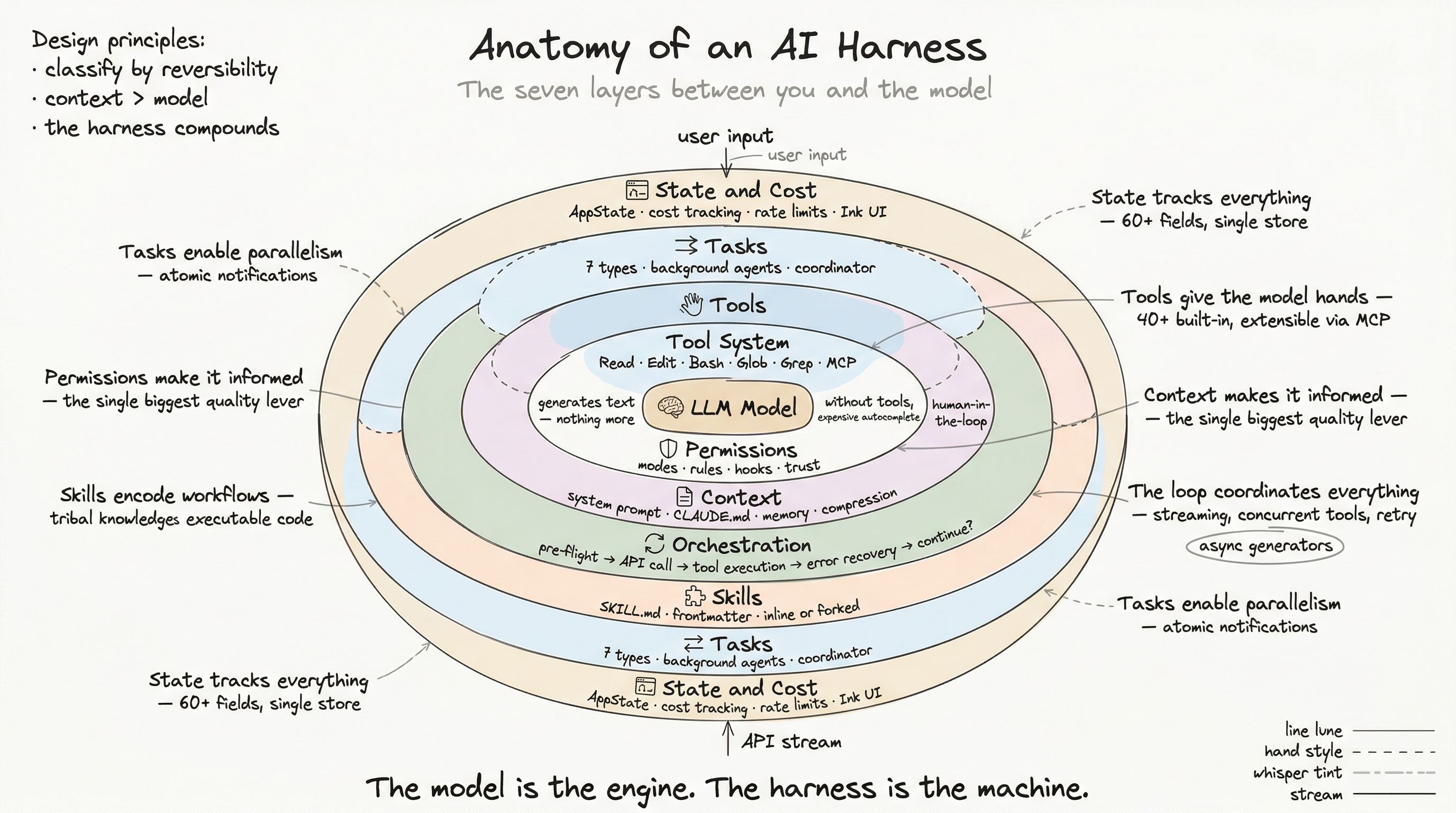
Here is a scenario that has happened to every developer who has given an AI agent too much freedom: the model decides to “clean up” by running a destructive command, force-pushing over a colleague’s work, or deleting files it deemed unnecessary. The model was not malicious. It was optimizing for the goal you gave it, with no understanding of the blast radius.
The permission boundary exists to prevent this. Not by limiting the model’s intelligence, but by encoding human judgment about what is safe, what is risky, and what requires explicit approval.
The Design Tension
A permission system that asks about everything is unusable. You will click “approve” reflexively until the one time you should have clicked “deny.” A permission system that asks about nothing is dangerous. The sweet spot is a system that understands the difference between reversible and irreversible actions and adjusts its behavior accordingly.
The production system resolves this with three layers: permission modes, permission rules, and hooks.
Permission Modes
The outermost control is the permission mode — a global setting that determines the system’s default behavior:
| Mode | Behavior |
|---|---|
default | Prompt for dangerous operations, allow safe ones |
acceptEdits | Auto-accept file edits, prompt for everything else |
plan | Execute only pre-approved plan steps |
dontAsk | Deny (not prompt) for anything not whitelisted |
bypassPermissions | Skip all checks (testing only) |
auto | AI classifier auto-approves safe operations |
Most users run in default mode. But the mode system enables a critical workflow: escalation and de-escalation over time. A new user starts in default, builds trust, and might move to acceptEdits. An unattended agent might run in auto with classifier-based approval. A paranoid deployment uses dontAsk with explicit allow-lists.
The mode is the macro control. Rules are the micro control.
Permission Rules
Rules are specific patterns that override the mode’s default behavior. Each rule has three components:
type PermissionRule = { source: 'userSettings' | 'projectSettings' | 'localSettings' | 'policySettings' | 'cliArg' | 'session' ruleBehavior: 'allow' | 'deny' | 'ask' ruleValue: { toolName: string // Which tool ruleContent?: string // Optional pattern (e.g., "git *") }}The source is critical. Rules from different sources have different trust levels and persistence:
- Policy settings (enterprise admin) — Cannot be overridden by users. If your admin says “deny Bash(
rm -rf *)”, that rule is absolute. - Project settings (
.claude/settings.json) — Shared with the team via version control. “Always allowpnpm test.” - User settings (
~/.claude/settings.json) — Personal preferences. “Always allow file reads.” - Local settings — Machine-specific, not committed.
- Session — Temporary, expires when the conversation ends.
- CLI arguments — One-time overrides for a specific invocation.
Rule evaluation order
When a tool requests permission, the system evaluates rules in precedence order:
- Check if
allowManagedPermissionRulesOnlyis set (enterprise lockdown) — if yes, only policy rules apply - Otherwise, merge rules from all enabled sources
- Deny rules take precedence over allow rules when conflicting
- First matching rule wins
This means an enterprise admin can lock down the system completely, while still allowing project-level convenience rules within those bounds. A user cannot escalate past their admin’s constraints.
The Decision Flow
Every tool call passes through a decision pipeline:
Tool requests execution ↓Check forced decisions (pre-determined for this tool use) ↓Compute permission decision from rules + mode ↓├─ ALLOW → log decision, execute tool│├─ DENY → log decision, notify user, skip tool│└─ ASK → escalation chain: ├─ Permission hooks (user-defined automation) ├─ Coordinator mode (delegate to parent agent) ├─ Speculative classifier (bash safety analysis) └─ Interactive user prompt (final fallback)Each decision carries a reason — not just “allowed” or “denied,” but why:
type PermissionDecisionReason = | { type: 'rule', rule: PermissionRule } // Matched a rule | { type: 'hook', hookName: string } // Hook decided | { type: 'classifier', classifier: string } // AI classified as safe | { type: 'mode', mode: PermissionMode } // Mode default | { type: 'workingDir', reason: string } // Outside allowed directory | { type: 'sandboxOverride' } // Sandbox environmentThis traceability matters. When something goes wrong, you can answer: “Why was this allowed?” and “Which rule or hook made that decision?”
Hooks: Programmable Permission Logic
Rules handle static patterns. Hooks handle dynamic logic. A hook is a user-defined shell command, API call, or prompt that executes at specific lifecycle points:
{ "hooks": { "PreToolUse": [ { "type": "command", "command": "bash scripts/check-protected-files.sh" } ], "PostToolUse": [ { "type": "command", "command": "bash scripts/lint-changed-files.sh" } ] }}Hooks can return structured decisions:
{ "decision": "block", "reason": "File is in protected directory", "permissionDecisionReason": "Company policy prohibits AI edits to /config/"}Hook types
- Command hooks — Shell scripts that receive tool context as JSON on stdin
- Prompt hooks — Claude API calls that evaluate the operation
- HTTP hooks — Remote webhook calls for centralized policy evaluation
- Function hooks — JavaScript callbacks (SDK only)
What hooks enable
Hooks turn the permission system from a static allow/deny list into a programmable policy engine:
- Run a linter after every file edit
- Block edits to protected directories
- Require a second model’s approval for destructive operations
- Log all tool uses to an audit system
- Inject additional context (“warning: this file was modified 5 minutes ago by another developer”)
The hook output can include additionalContexts — messages injected into the conversation. This means a hook can not only block an operation but explain why in the model’s context, so the model adapts its approach rather than blindly retrying.
Dangerous Pattern Detection
The permission system’s most sophisticated component is its analysis of bash commands. A naive approach would pattern-match against strings: block anything containing rm, sudo, or curl. But developers legitimately run rm (deleting build artifacts), sudo (installing system packages), and curl (testing APIs).
The production system uses AST-level analysis:
// Simplified from bashSecurity.tsfunction analyzeBashCommand(command: string): SecurityAnalysis {  const ast = parseShellAST(command)
  return {    hasSubshells: detectSubshells(ast),    hasRedirects: analyzeRedirects(ast),    hasHeredocs: detectHeredocPatterns(ast),    hasCompoundCommands: detectCommandGroups(ast),    envVarsSafe: inspectEnvironmentVariables(ast),    executesCode: matchesCodeExecutors(ast),    isDestructive: matchesDestructivePatterns(ast),  }}
Dangerous command categories
The system maintains two levels of dangerous patterns:
Cross-platform code executors (always flagged in auto mode):
- Interpreters:
python,node,deno,ruby,perl,php - Package runners:
npx,bunx,npm run,pnpm run - Shells:
bash,sh,zsh(as subcommands) - Meta-executors:
eval,exec,env,xargs,sudo
Network and mutation operations (flagged for internal environments):
- Cloud CLIs:
kubectl,aws,gcloud - Network tools:
curl,wget,ssh - Git operations:
git push,git reset --hard
The key insight: the same command can be safe or dangerous depending on arguments. git status is safe. git push --force is dangerous. The AST analysis distinguishes between them by inspecting the full command structure, not just the binary name.
Workspace Trust
Before any of this matters, the system must establish workspace trust. When you open a project for the first time, the harness asks: “Do you trust this workspace?”
This is not theater. Project-level settings (.claude/settings.json) can define permission rules, hooks, and skill configurations. A malicious repository could include settings that auto-approve destructive operations or inject hooks that exfiltrate data.
The trust dialog serves as a blast radius boundary:
- Until trust is established, no hooks execute
- Project settings are loaded but not applied
- The user explicitly acknowledges: “I have reviewed this project’s AI configuration”
For non-interactive modes (SDK, background agents), trust is implicit — the operator is responsible for vetting the environment.
Enterprise Controls
The top of the trust hierarchy is enterprise policy. When allowManagedPermissionRulesOnly is set:
- All user-defined rules are ignored
- Only managed (policy) rules apply
- Users cannot add allow rules that bypass policy
- Hooks from non-managed sources are disabled
This creates a zero-trust enterprise layer: the admin defines what the AI can and cannot do, and individual users operate within those bounds. The implementation is simple but critical — it is a single boolean that changes the rule evaluation from “merge all sources” to “policy source only.”
Decision Logging and Auditability
Every permission decision fires a telemetry event:
tengu_tool_use_granted_in_config— matched an allow ruletengu_tool_use_granted_by_classifier— AI classified as safetengu_tool_use_granted_in_prompt_permanent— user approved + saved ruletengu_tool_use_granted_in_prompt_temporary— user approved, one-timetengu_tool_use_rejected_in_prompt— user deniedtengu_tool_use_denied_in_config— matched a deny rule
These events feed into analytics, enabling questions like: “How often do users override default permissions?” “Which tools generate the most permission prompts?” “Are our default rules too restrictive or too permissive?”
For code-editing tools specifically, the system tracks additional metrics by programming language — enabling analysis of which languages generate more permission friction.
The Permission UX
The technical system is elegant. But the user experience is what determines whether people actually use it correctly.
When a tool triggers an ask decision, the user sees:
- What the tool wants to do (rendered by the tool’s
renderToolUseMessage) - Why it is asking (the permission reason)
- Options: Allow once, Allow always (save rule), Deny
“Allow always” is the lever that makes the system usable over time. Each approval can optionally become a permanent rule, reducing future friction. The system gets smarter as you use it — not because the AI learns, but because the permission rules accumulate your decisions.
The danger is “allow always” fatigue — users creating broad rules to avoid prompts, then forgetting they exist. The settings file is human-readable and version-controlled, providing a review mechanism. And enterprise policy can override user rules, creating a safety net below the user’s judgment.
Design Principles
After studying this system, three principles stand out:
-
Classify by reversibility, not by danger. Reading a file is always safe — not because files are harmless, but because reading cannot cause damage. Writing a file is medium-risk — you can undo it. Pushing to a remote is high-risk — you cannot unpush. The classification follows blast radius, not intent.
-
Make the common path frictionless. The 80% of tool calls that are obviously safe (file reads, search, test execution) should never prompt. The 15% that need a quick glance (file edits, new file creation) should be one-key approval. Only the 5% that are genuinely dangerous (network operations, destructive commands) should require careful review.
-
Every decision should be traceable. When something goes wrong — and it will — you need to answer “how did this happen?” The decision reason, the rule source, the hook output, and the telemetry event provide the complete chain of accountability.
Next: Context Engineering — Building the Model’s World, where we examine how the harness constructs the model’s working memory from project files, persistent memories, and dynamic context.